Remote Technical Support Server
On-Demand-Assist
We now prefer to provide remote assistance using the on-demand feature of RealVNC Connect. This will replace the COPIATECH utility, which remains available and which is still installed with CopiaFacts.
Both products are based on the same VNC technology, but RealVNC better supports systems with multiple monitors, and has improved security and chat features.
To use this remote support in a Copia Support session, you will need to first download and run the small RealVNC server component On-Demand-Assist.exe. This can be done most easily by running COPIAINSTALL9 and clicking the Remote Support button in the lower left corner of the window. Use control-click to download only, without running the program.
After you have done this once, On-Demand-Assist will be available from Windows Explorer in Copia Shortcuts. If we are aware of an (occasional) update Copia Support staff might suggest that you need to download it again before a remote session.
The program will display a request for a session code which Copia Support staff will give to you:
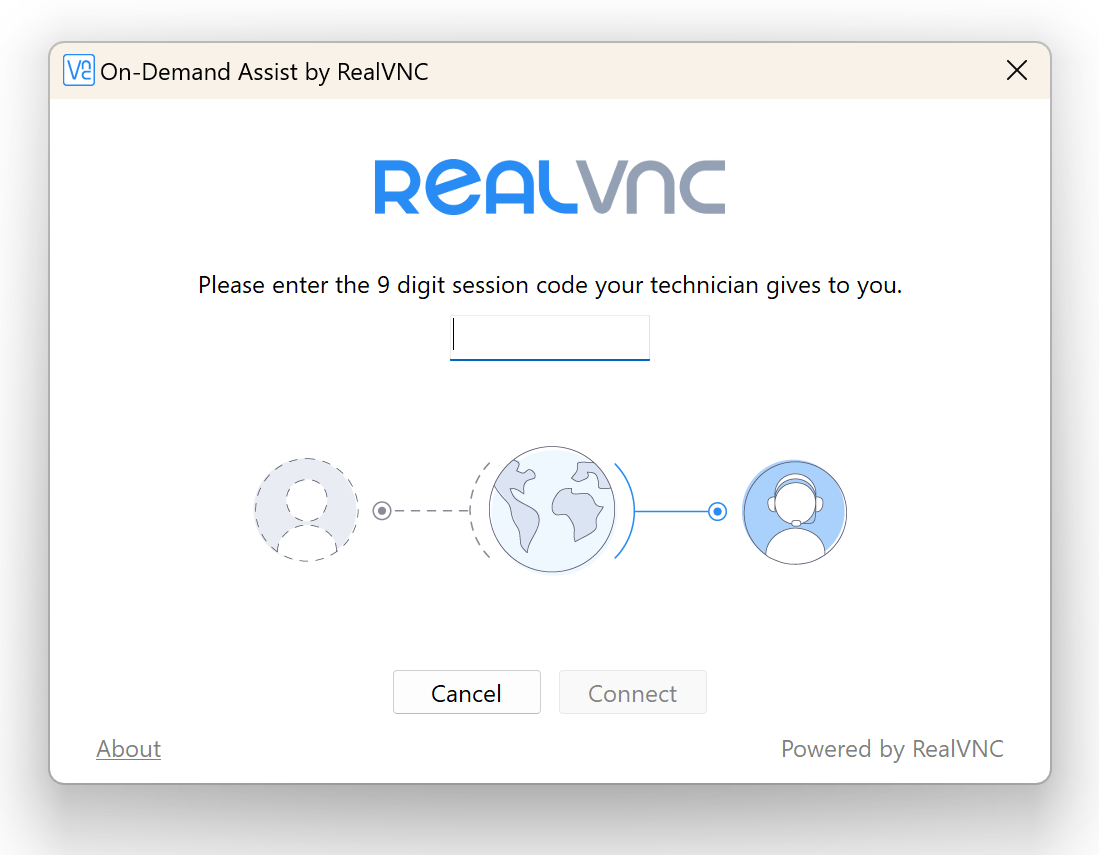
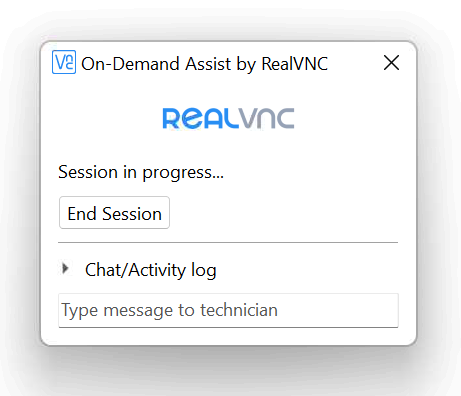
After entering the code, click Connect and accept the confirmation that your screen can be viewed and controlled by Copia Support. There will be a small window displayed which allows you to close the session at any time. This will log the actions taken and can also be used to 'chat':