The CFJOURNAL utility provides a convenient way of viewing selected events from the Windows Event log as a daily journal. It selects Windows system events which are often hard to locate deep in the 'Microsoft' sections of the event log, and also displays starting. stopping, and error events from important CopiaFacts applications and services. All supported event types can be optionally displayed or excluded, and the date range to be viewed can be configured. Displayed events are grouped by date:
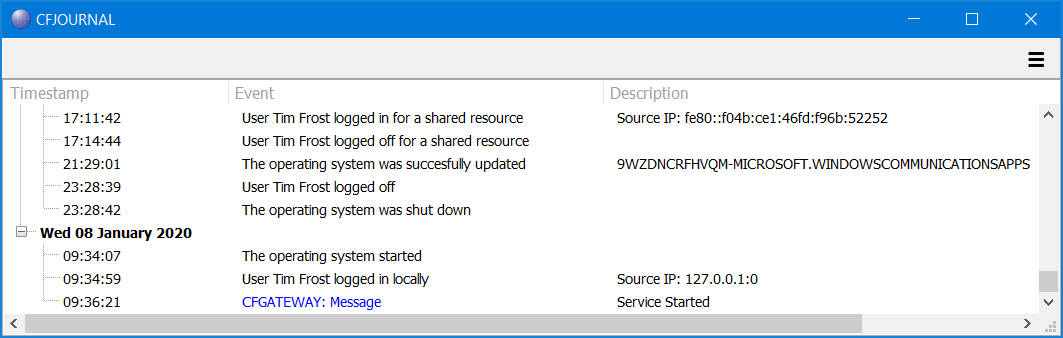
On closing the program, the displayed events are written to a file named CFJOURNAL.csv in the defined temp folder for CopiaFacts (normally C:\FAXTEMP). Entries are not written to the file if the date on which they occurred is not expanded in the display. If run on a system on which CopiaFacts has not been installed, the CSV file is written into the Windows temporary folder.
To configure the events to be selected, click on the 'hamburger' icon and check or uncheck the required event types. The date range of entries in the event log which are scanned can be set with the 'Hide Older Than' setting, as can the range of entries which are initially expanded with the 'Expand Newer Than' setting. All these settings are saved in the Windows registry for the user. To refresh the display without changing the filters, you can either press F5 or open this dialog and click OK.
Note that CFJOURNAL must be run elevated, because retrieving some of the event log entries of interest is otherwise not permitted.
To assist users who wish to run this utility regularly, the scan range can be overridden using a command-line value which can be added in a command file. When this option is used, the program terminates after saving the file.
To save the entries for the previous day (and any for the current day), you might use an (elevated) batch file run early each day containing:
CFJOURNAL 1
TYPE "C:\FAXTEMP\CFJOURNAL.CSV" >> MYLOGFILE
If you have a huge event log size and the scan takes too long, there is a PowerShell cmdlet Limit-EventLog which can reduce its size.
Color coding
Windows errors have a light red background; Windows updates light green; all CopiaFacts messages light blue.
Windows and CopiaFacts error messages have red text; CopiaFacts warnings medium red text; CopiaFacts start/stop program messages blue text.
