Fax cover sheets are made up of two separate components:
•a background or 'watermark' page, which normally consists of a company letter-heading, or else includes a company logo.
•a set of variable information which is overlaid on the watermark, with details such as date, time, sender, etc.
CopiaFacts requires a faxable TIF file to act as the watermark. Normally, this is a single page, which you can create most simply by printing a mainly blank page to the Fax Client printer, perhaps with your company logo at the top.
The variable information, field positions, and watermark file are specified in a GCT file (graphical customization template) which is created when you have laid out the various fields as annotations in FFVIEWER. For example an annotation content of @date1 will be converted to the actual date when the cover sheet is transmitted.
 | You can also save the annotations together with the 'watermark' image as a single combined .GTT file: this avoids the possibility of the files being separated. |
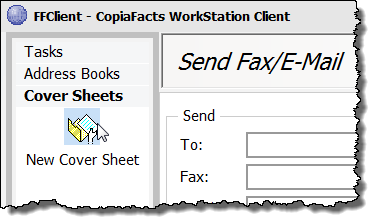
To create a cover sheet, first make sure that you have a watermark file (company logo) file ready, which you have printed to the Fax Client printer. Then in the Fax Client and select New Cover Sheet on the left:
Your watermark file will then be opened in FFVIEWER, with the standard sample cover sheet annotations applied from SAMPLE.GCT. Set the display to 100% (keyboard shortcut '1'). This is required to work with annotations. Then double-click to create an annotation where you want the first variable field to be located. Note that annotations for cover sheets must not be 'applied' to the document. They mark the positions and content of the field and remain as annotations until the contents have been expanded at transmit time, when they are applied automatically to the outgoing fax.
Add new variables, right click in the text area of the annotation and select Insert Variable to bring up a list of available variables:
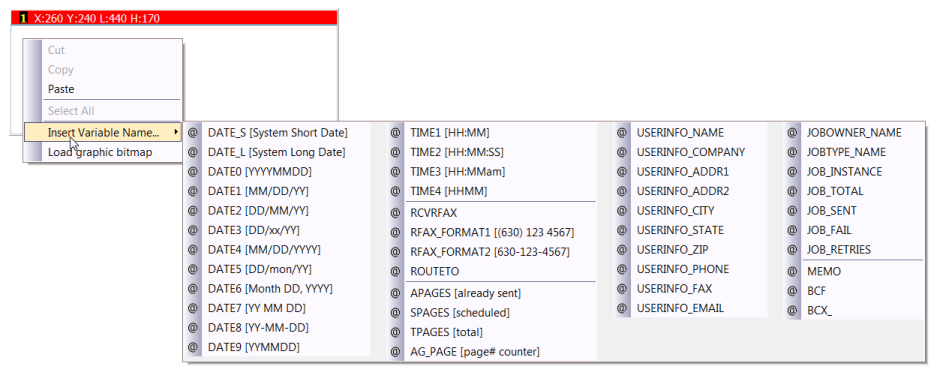
You can either select a variable on its own, when for example the word "Date" appears on the watermark already, or you can insert the necessary fixed text in the annotation, for example Date: @DATE1. The latter method makes it easier to align the items. Right-click the red annotation header to change the font and other annotation properties. For details of all the available options, see the annotations topic.
Create any other annotations you need for other variable data. Finally, select the Save Wizard to save the annotations in a GTT file, which is effectively a TIF file with your annotations embedded. If you prefer to keep separate files, select Save Stand-Alone GCT file, and then Link to Specific Fax Document.
When you close FFVIEWER, you will return to the Fax Client and can choose a name by which this cover sheet will be known in the Client software. You can specify (and later change) which cover sheet is to be your default cover sheet.
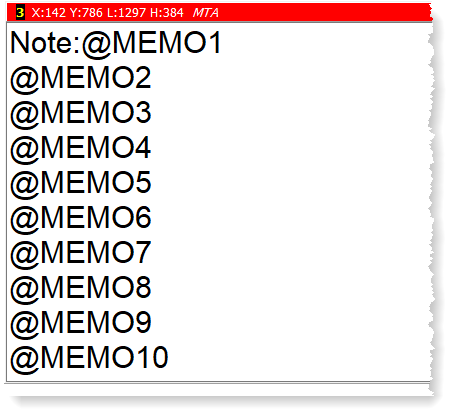
To add a cover sheet to a fax you are sending from the Client, simply check the Use Cover Sheet checkbox. If you have included an annotation with @MEMOx variables in your cover layout, the text you type in the Cover Sheet Notes or Message box will appear in that space on the transmitted cover sheet.
Note that you always need to define memo variables in a 'multi-line' annotation, and enter the variables on successive lines, as many as you need to fill the box:
From version 8.3.0.233, CopiaFacts supports a word-wrap mode for cover sheet text. Since the days when only fixed fonts could be used on a fax cover, CopiaFacts has supported only separate lines of text in MEMO variables. Because of differences in width between the entry field in FFCLIENT and the cover sheet, it was possible to have lines of text visible on the screen which were truncated on the fax cover, or lines of text truncated on the screen which might fit on a line in the fax cover. For example, when dealing only with separate lines, you may see:

You can now slide the selector to choose a new 'word-wrapped mode' for cover sheet memos. The setting is saved with your user configuration settings.

Selecting word-wrapped mode makes editing both easier and independent of the width and font of the annotation on your graphical cover sheet. In addition, when you select this mode for an e-mail transmission, the e-mail is sent in both HTML and plain text. Recipients who can only see plain text in their e-mail client will see the memo word-wrapped exactly as it appears in the FFCLIENT window.
When using word-wrapped mode the annotation in your graphical cover GCT or GTT file is automatically treated as if it had an HTML attribute, so that the paragraphs can be word-wrapped in the field. Currently, the cover sheet processing does not support HTML attributes such as bold or italic text; only specified newlines and indentation with spaces are handled. See the $style topic for details.
Both the CopiaFacts server components and FFCLIENT must be at version 8.3.0.223 or later to use this feature. Unlike when faxing complete ASCII documents, this feature does not support page wrap with multiple-page cover sheets.
