Windows PDF Print Driver from XKEY GmbH
As an alternative to the FFSAVE and FFCLIENT print drivers, we have tested and recommend the free PDF printer driver eDocPrintPro from XKEY GmbH in Austria. XKEY specialize in PDF and also license many other PDF tools, but eDocPrintPro is completely free to download and use. This driver requires a 64-bit Windows Server or Desktop OS and does not support Terminal Services environments. There is an older release of the driver which runs on 32-bit Windows versions. which we have not tested. There are links to the 32-bit version at the foot of the download page below.
As with FFSAVE, this driver can be used to print any document to PDF, with or without a pop-up dialog. However it does not support printing PDF files; this would only create another PDF file and may introduce distortions. You can configure multiple "printers" with different names to use this print driver in different ways, including as a replacement for the FFCLIENT print driver.
The resulting PDF file can be named on a $fax_filename command and will be converted using the method selected in the FFEXTERN conversion options dialog.
Downloading eDocPrintPro
To download the driver, go to https://www.pdfprinter.at/en/ and click the download button:

The download will be named eDocPrintPro.zip.
Installing eDocPrintPro
Open the ZIP and run the installer. There are no options to select. After installation, you will find an eDocPrintPro printer listed in your Windows "Devices and Printers".
In order to configure the printer for a specific application, we strongly recommend that you first use the "eDocPrintPro Tool" to add a printer with a specific name to match your application. Then if you later need to add another printer with different settings, for example with a pop-up save dialog instead of without a dialog, you can simply configure the new printer (as described below) in a different way,
You will find the "eDocPrintPro Tool" from the Windows Start Menu in the All Programs list, under eDocPrintPro. Also under eDocPrintPro is a link to PDF documentation for this utility (though the user interface to add a new printer is clear and straightforward). This PDF starts in German; skip to page 8 for the English version.
Configuring eDocPrintPro
To configure the driver, go to Windows 'Devices and Printers', locate eDocPrintPro, or the name of one of your multiple eDocPrintPro printers, right-click it, and select Printing Preferences. Items on this dialog are selected by changing a red x to a green tick.
Paper/Layout tab:
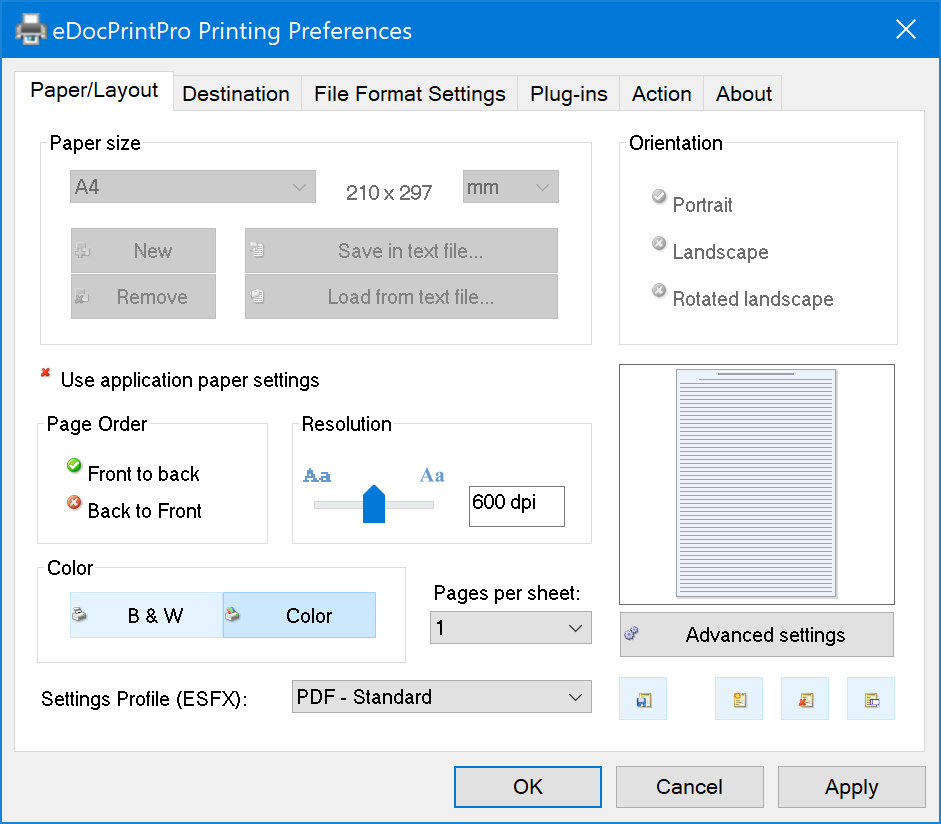
•Deselect 'use application paper settings' if you wish to specify a default paper size and orientation
•We recommend a resolution of 600 dpi as this is a multiple of the default fax resolution.
•Select Color if you wish to use the extensive dithering and optimization in the CopiaFacts Image Options Editor.
•We recommend using PDF-Standard as the settings profile.
Destination tab - for use with output selection pop-up dialog:

•Select PDF destination type
•Deselect 'additional ASCII output' (unless you require text extraction as well as faxing)
•Select 'Use Save As Dialog and, Remember last selected folder
•Enter a default folder if required.
•"If destination file exists" select "Ask for Action".
Destination tab - for use without output selection pop-up dialog, emulating SAVEAUTO:
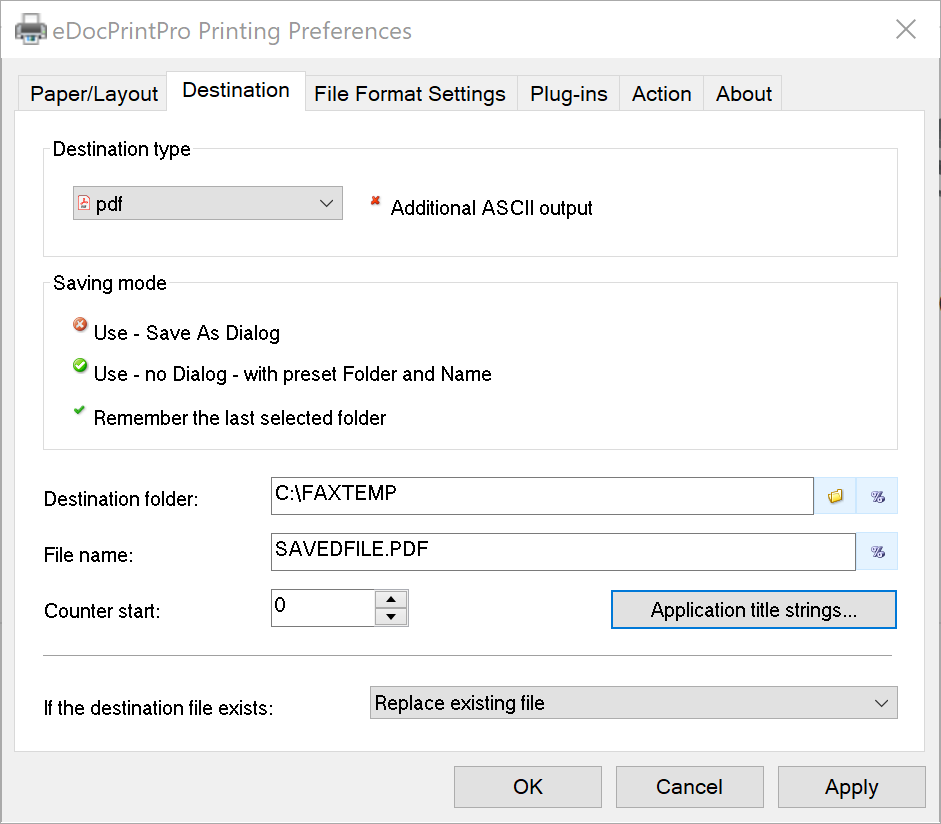
•Select PDF destination type
•Deselect 'additional ASCII output' (unless you require text extraction as well as faxing)
•Select 'Use No Dialog with preset Folder and Name', and Remember last selected folder
•Enter a fixed output folder and filename.
•"If destination file exists" select "Replace Existing file".
Destination tab - for use with FFCLIENT:
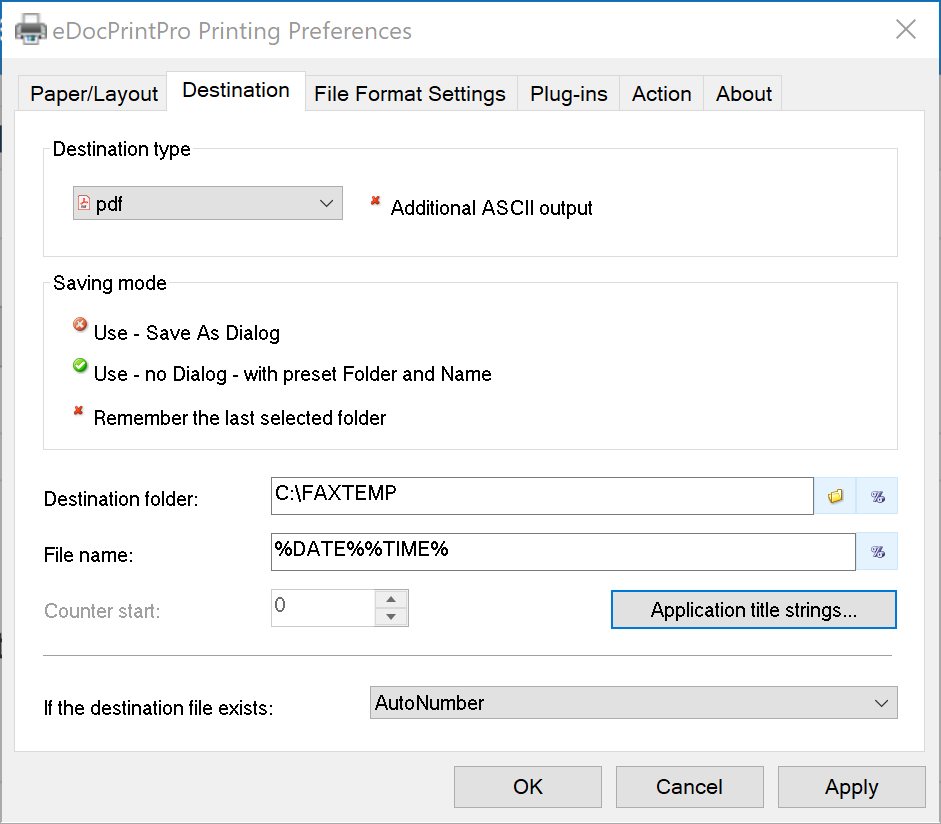
•Select PDF destination type
•Deselect 'additional ASCII output' (unless you require text extraction as well as faxing)
•Select 'Use No Dialog with preset Folder and Name'.
•Enter a fixed output folder and filename. Other variables can be selected from the % button.
•Enter %DATE%%TIME% in the filename box. Other variables can be selected from the % button, but must create a unique filename, so should include either date and time or %COUNTER%.
•"If destination file exists" select "AutoNumber".
•Enter the process to be run on the Action tab (see below).
File Format Settings:
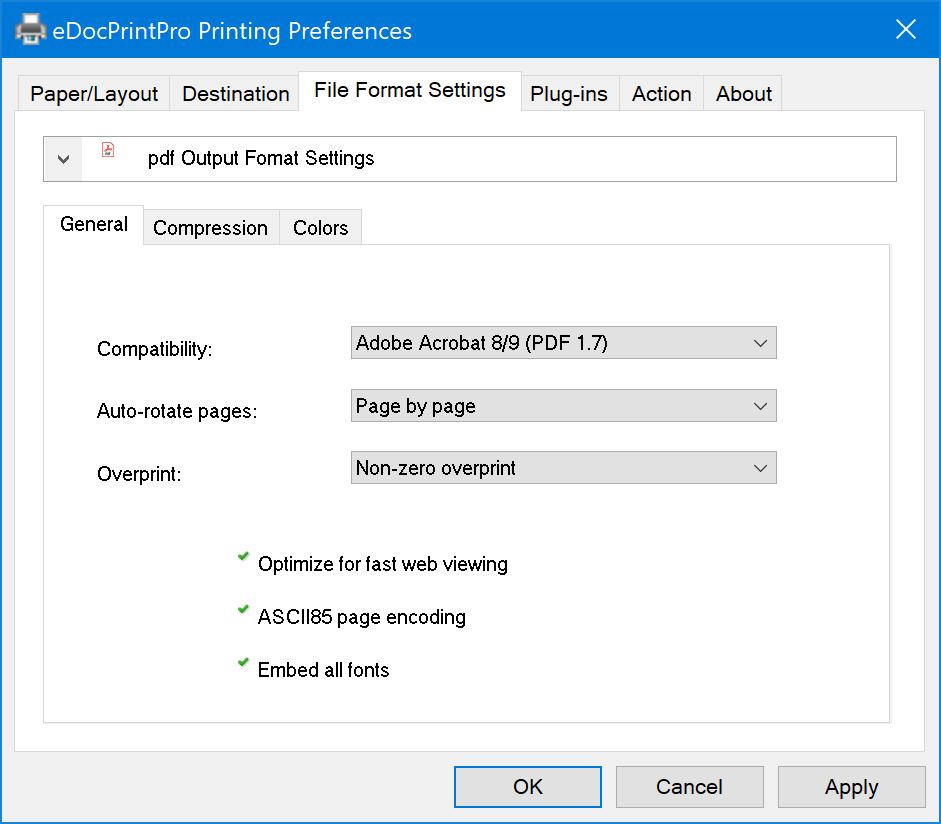
We recommend using the default settings unless you wish to experiment for your specific document types. Since for most CopiaFacts applications the PDF will be a temporary file, compression is not essential.
Plug-ins:
•We have not found or tested any relevant plug-ins.
Action:

•An Action must be enabled when configuring eDocPrintPro for FFCLIENT or to run your own application.
•Click Enable Action to set the indicator icon to a green tick, and set Action Type to "Execute Process".
•Enter the path to FFCLIENT (or to your own application). Use double-quotes if the path contains spaces.
•Enter %PATH% as the command line, in double-quotes, to pass the PDF pathname to the process.
•Select "Wait for complete printing".
