Introduction
CopiaFacts server applications are designed to run continuously. Various Windows and CopiaFacts settings are recommended to maximize the reliability of your CopiaFacts system, and to ensure that you are made aware of any failures. Following the steps in this topic will ensure that:
•if possible, you are always made aware of any system downtime
•your system will restart after a power failure or software updates
•your staff will be able to restart the system after an abnormal occurrence
You should make sure that the settings are applied on each machine which is required to run continuously, for applications such as the COPIAFACTS engine, JOBMON if you run Job Administration, and the CopiaFacts SMTP Gateway if you run that.
Hardware Configuration Recommendations
Check that your BIOS (and Windows) power management settings do not permit automatic shutdown on inactivity
Make sure in the BIOS settings that the system is set to power ON after a power failure. Many systems default to remaining OFF after power is restored.
Windows Configuration Recommendations
We recommend creating a CopiaFacts specific logon and password to run Copia applications. Do not use the system administrator login.
If you are not using the Operation as a Service features for the COPIAFACTS Engine and Document Converter, set Windows to automatically log in to the specified account. The simplest way to do this is to download AUTOLOGON from Microsoft Tech net:
http://technet.microsoft.com/en-us/sysinternals/bb963905.aspx.
AUTOLOGON presents a simple dialog where you can enter logon credentials and enable or disable automatic logon, where your corporate policy permits this. However using the Services versions of COPIAFACTS and FFEXTERN is a better option.
If you prefer to make the auto-logon settings in Windows directly, press Windows R or Start/Run to open a command box. Type control userpasswords2 and hit the enter key. This should display the User Accounts screen. Select the required user account in the main table and uncheck the "Users must enter a user name and password to use this computer" checkbox. A click on the Apply button will open the "Automatically Log On" window. Enter the password and confirm it to add the password to the system so that it does not need to be entered during logon.
Set Windows to suppress the request for a reason for shutting down the system. This request may also be made on a restart after an abnormal shutdown. It usually defaults to 'enabled' on a server-type operating system. Press Windows R or Start/Run to open a command box. Type gpedit.msc and hit the enter key. Navigate to Computer Configuration / Administrative Templates, System. Scroll down to the individual items on the right-hand panel to find "Display Shutdown Event Tracker". If shown as 'enabled', double-click to change the setting.
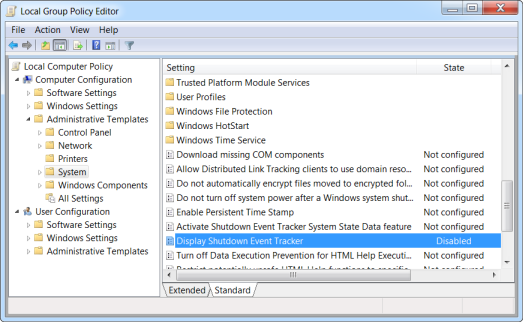
After changing the above settings test that the changes you have made are effective.
Third-Party Application Configuration Recommendations
If you are using CopiaFacts Document Converter, it will automate applications such as crobat, Microsoft Office Word and Excel, etc. For each application used in converting documents:
•if the application needs to be registered before first use, check that you have completed this process
•if the application can check for updates, make sure that this feature is either suppressed or takes place without user intervention
•ensure that any pop-up tips or automatic help features are disabled
•if you have suppressed automatic update checks, establish a timetable for regular manual checks for security updates.
CopiaFacts Configuration Recommendations
Use STARTCOPIA to start CopiaFacts applications automatically on startup. Set and test the delay time to ensure that all required services have started. Also set and test the delay time on the main COPIAFACTS startup page.
Test each machine individually by doing a manual reboot or power cycle to ensure that it restarts and that all the required operations commence normally.
For procedures for recovery after system failures, see the linked topic. In summary:
•If you have more than one machine operating, set up and use OMACHECK. This monitors the operation of other machines running CopiaFacts applications. It can be set to automatically reboot failed machines, and if some machines are unaffected OMACHECK can run a batch file which drops an FS file to send you a message when a failure has occurred, or after the system has been restarted.
•To ensure that OMACHECK will be able to reboot another machine, first test as follows that the account running OMACHECK has permission to reboot: using the account which will run OMACHECK, run the NTREBOOT program to reboot each target machine and check that it goes into normal operation. You may need to set the policies of the target system to ensure that it can be rebooted remotely. If NTREBOOT succeeds, OMACHECK will also be able to reboot the remote system if it catches an event where it is configured to do so.
•Check that the batch file to be run by OMACHECK will do whatever is needed to record the failure and notify someone if necessary.
Finally, establish effective backup procedures, and test the backup process during normal hours. If your backup utility affects the normal operation of CopiaFacts programs, consider setting a blackout period in FFEXTERN or using the daily shutdown options in COPIAFACTS to avoid problems.
