Editor for CopiaFacts command files
CopiaEdit [pathname]
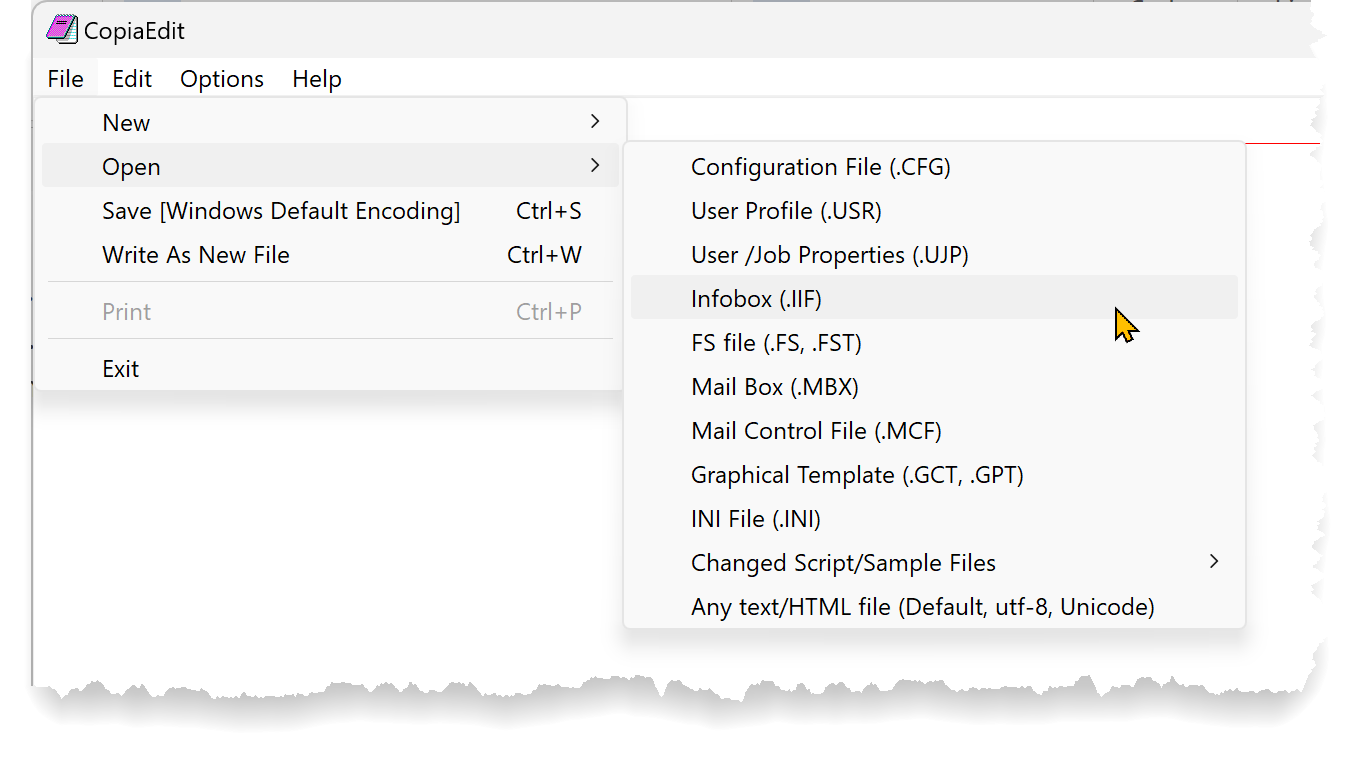
COPIAEDIT is a simple (Notepad-like) text editor designed specially for use with Copia command files and with many other features to assist with CopiaFacts tasks. It has a syntax-highlighting feature which shows command keywords in bold font, and also includes integrated help. It supports CFG, USR, UJP, FS, IIF, GCT, MBX, and MCF files, but can also be used for other text file types, and for HTML files. For Copia command files, the File/Print menu will print files using the syntax-highlighted colors.
To display help for a CopiaFacts command, either press F1 with the cursor on the command text, or double-click the bold command. This will open the reference page for the command in CopiaFactsRef.cfhelp. A help page which lists all the available commands for the current file type is also available from the help menu.
COPIAEDIT loads files with any supported encoding but always saves CopiaFacts command files with the encoding specified by the $unicode commands in FAXFACTS.CFG. If you edit FAXFACTS.CFG and change its own encoding, it will be saved with the new encoding. The menus and title bar display the encoding.
For files with extensions other than CopiaFacts command files and INI files, the CP_COPIAEDIT configuration file variable allows you to specify automatic encoding detection parameters, which can then be enabled, for loading non-command files, from the Options menu. Such files can also be saved with non-standard encodings: an analysis of the text will offer available supported encodings, if any, on the Edit menu. The new encoding is then applied when the file is saved.
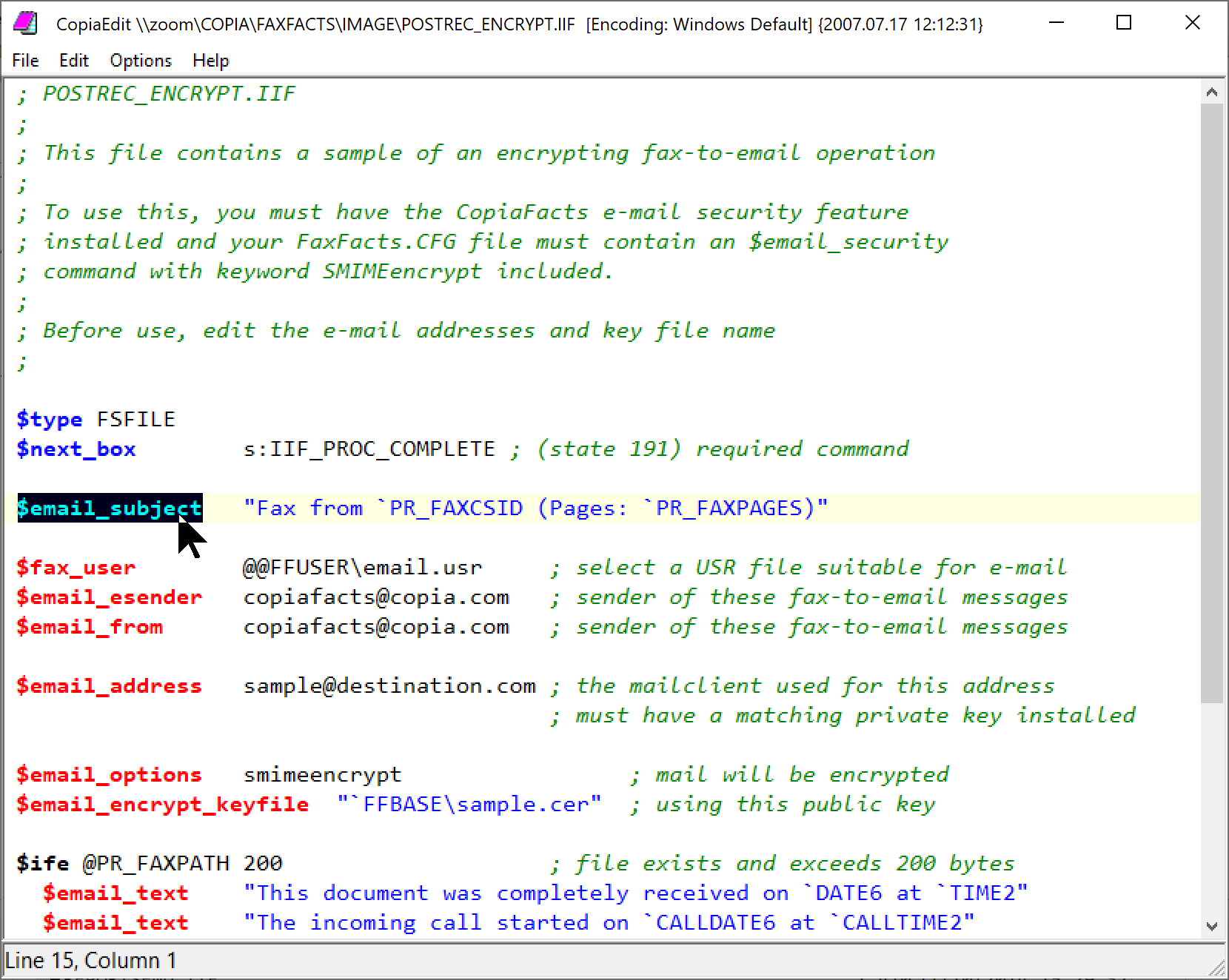
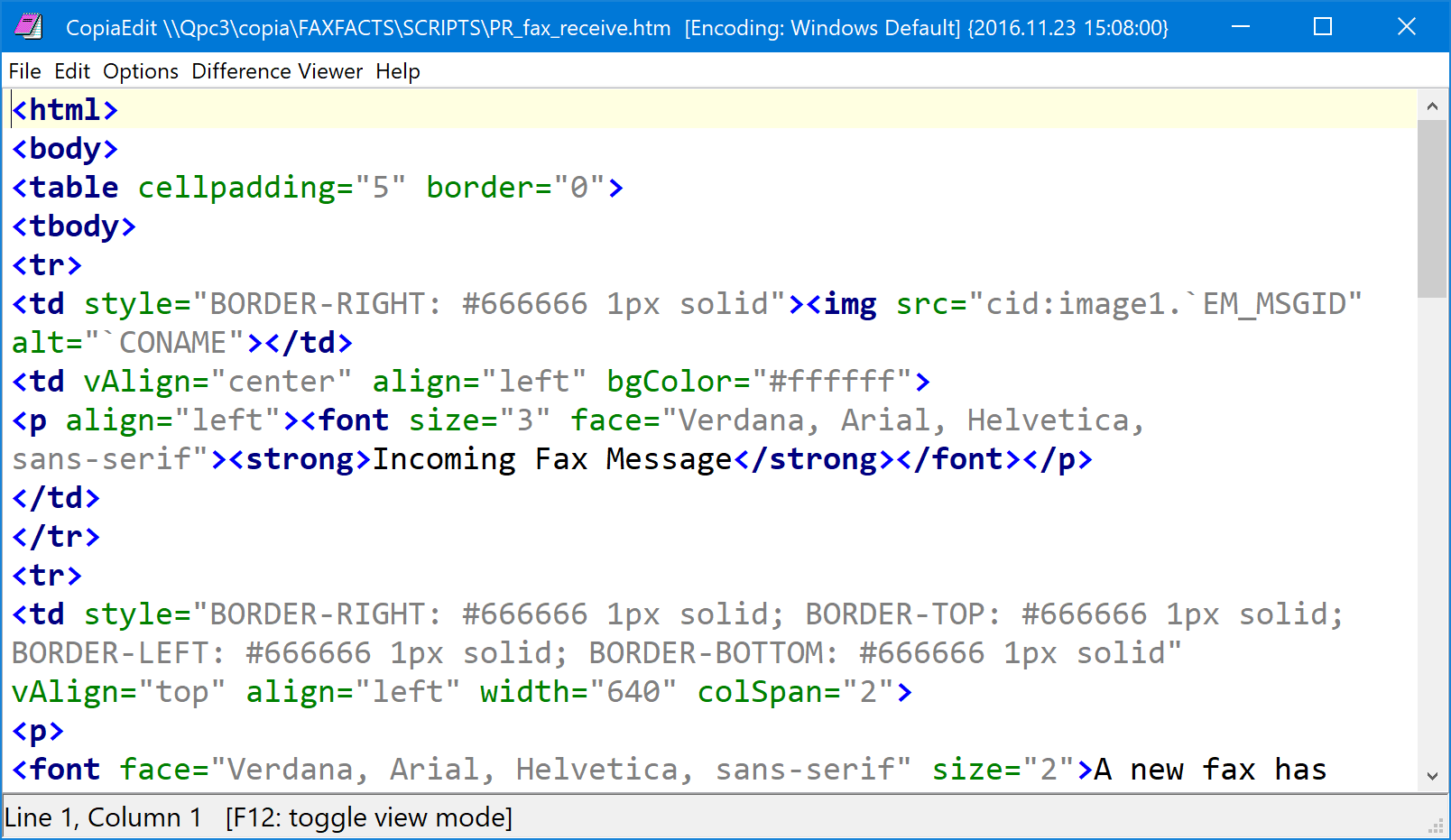
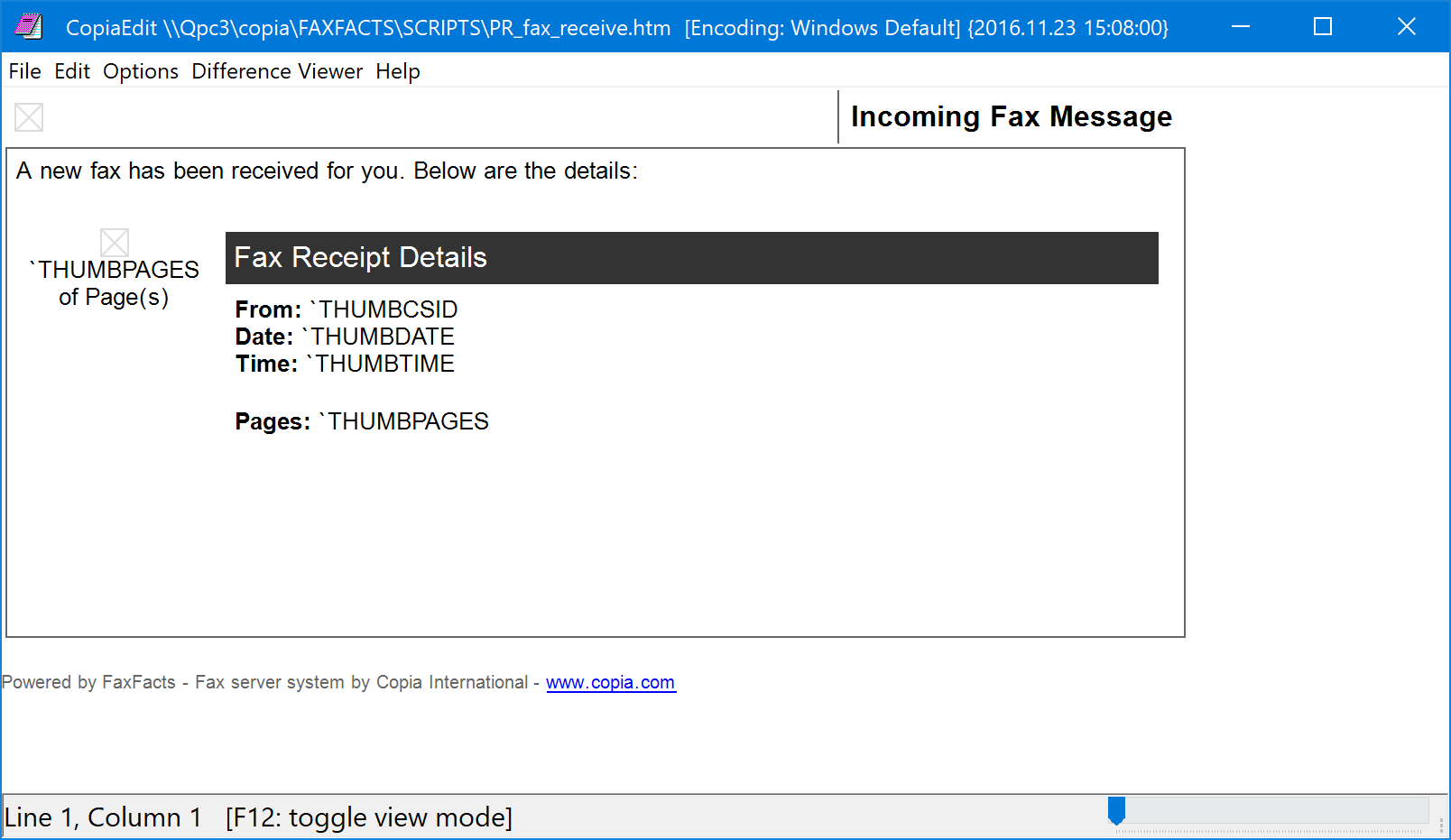
COPIAEDIT also handles INI files (but without the 'help' function) and can in fact be used to edit any plain text file (without the syntax-highlighting). Syntax highlighting is also available for HTML files, and COPIAEDIT can also render HTML files for checking how they will appear.
COPIAEDIT also includes undo/redo and printing capability, and can also auto-indent (from the edit menu) conditional commands in a command file. A backup is made using a file extension with a leading tilde (e.g. .~ext) unless this is suppressed from the Options menu.
When editing an infobox (IIF) file, if the first command is $authenticate, or if a @SECRET or `SECRET variable is used in the file or in any file included with $include, a password will be requested on saving. For more information on authentication, see Encrypted Variables.
Special Editor Functions
•With the cursor on a 'word' or number, or on highlighted text, you can hold down the Control and Alt keys and then press Up-Arrow or Down-Arrow to navigate to the previous or next occurrence of the same text in the file. Release the Control or Alt key to end this operation.
•With the cursor on a conditional command $if or $endif you can hold down the Control and Alt keys and then press Right-Arrow to move to the matching $endif or $if command respectively. Release the Control or Alt key to end this operation. This feature can also be used with $ifn, $ife, and $ifne commands.
•The F9 key can be used to auto-indent a CopiaFacts command file.
•From build 9.1.0.370, and only for FST files in a TOSEND folder, COPIAEDIT allows you to shift-click "Write as New File" in the File main menu to cause the file to be saved as an FS file in the same folder, leaving the FST file open for further editing. This smplifies Simple Fax Tests.
•Column block selection using Alt--Drag or Alt-Shift-Arrow is supported, and selected blocks can be copied and pasted. Because this feature is incompatible with word-wrap, it must first be enabled in the Options menu, which will disable word-wrap. Re-selecting word-wrap in the Options menu will disable block selection.
•Press the F11 key when editing an HTML file to display a 'formatted' version of the HTML content. Editing this view is not currently supported, but it can be saved to replace the original, or you can restore the original text by pressing F11 again.
•Press the F12 key when editing an HTML file to toggle the display mode between text editing and rendering the HTML as it would be displayed in an e-mail or a browser. A scaling trackbar will also appear on the status line (if the status line is enabled in the options menu).
 |
 |
•The find (control-F) and replace (control-R) dialogs have two extra buttons in the edit field where you enter find and replace text. The button at the left will paste the current clipboard content into the field, and that on the right will display a list of the recent find and replace text entered. These two lists are shared across the uses of the syntax-highlight editor when it is embedded in other CopiaFacts applications. Up to 16 entries are saved for each field.
•When the syntax-highlight editor is in use, F3 and shift-F3 can be used to find the next or previous occurrence of the last find text found in the same application, if any.
•Control-click on a file named in the most-recently-used (MRU) list in the file menu will open the file in a new COPIAEDIT instance. When clicked without the control key, the file replaces that in the current instance, with a warning if changes are not saved.
Opening a file named in the text
If you highlight a file name or path name in the editor and right-click it, then if the file can be found, clicking a pop-up menu item will allow you to view the file. The selected text may optionally include double-quotes, and if a supported file name is enclosed in double-quotes, then double-clicking anywhere between the double-quotes will in most editor dialogs cause the file to be opened, even though blanks in the filename may cause the editor not to highlight the whole name. If the file is not found or not supported, nothing happens.

For files such as PDF or DOC an appropriate application must be registered to process the view. File names of CopiaFacts command files without a path element are searched for in the appropriate locations: for example an FS file is searched for in SENT, FAIL, PREPROC, POSTPROC and all the configured TOSEND folders. Filename variables such as @FFBASE are expanded if present.
The following file extensions are supported: CFG, USR, UJP, FS, MCX, MCF, IIF, GCT, GTT, GPT, TR?, FT?, GW?, DOC, DOCX, XLS, XLSX, XLSM, PPT, PPTX, TIF, TAB, HTM, HTML.
If a file name has no extension and is enclosed in {} characters (as in a COPIAFACTS trace file) it is assumed to be an FS file name, unless it is of the form {I:nnnnnnnn} in which case it would be assumed to be an infobox filename. To find an IIF file, CFG file $script_locn commands and those in the default USR file, if found, are used: of course the latter may not be the user profile in use at the time that the infobox name was written to a trace file.
The syntax-highlighting editor of COPIAEDIT is also embedded in various other CopiaFacts programs, including GWMANAGER, JOBADMIN, and STATUS, and the same facilities for opening files are available in these programs there. In COPIAFACTS on the Scrollback tab you can right-click in the middle of a file name path name (the path name cannot be highlighted), and in TRCVIEW you can select and right-click a file name or path name in the pop-up window which appears if you right-click a trace line.
If you see blank red characters in the text, this means that you have text (probably originating from an HTML original, or from an Excel spreadsheet) containing 'non-breaking space' (U00A0) characters. They will usually cause rejection in CopiaFacts command files and should be changed to normal space characters.
Updating Copia Standard Scripts
Sometimes, changes or corrections to standard scripts or other sample files are installed in a CopiaFacts update. Your working copies of these files are never updated, in case you have modified or customized them; instead the new file is written to the FAXFACTS\SAMPLES\ScriptMasterCopies folder. The installer creates a list of changed files in CHANGEDFILES.TXT in the same folder.
COPIAEDIT uses this list of updated files to determine if a new master copy of a file you open has been installed. If you open your working copy of one of these files from its standard install location, a dialog will be displayed inviting you to apply the changes to your own copy of the file:

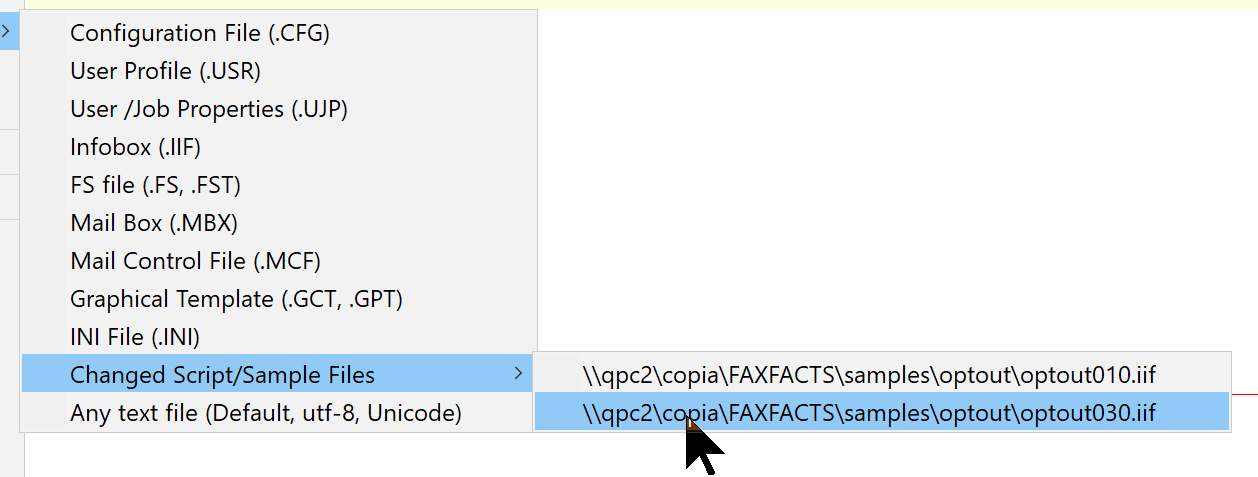
When there are new files in the ScriptMasterCopies folder, COPIAEDIT will also list them in an Open submenu. Opening a file from the "Changed Script/Sample Files" sub-menu also opens the difference viewer. Use control-click in this sub-menu if you wish to open the file without opening the difference viewer immediately.
If you return from the difference viewer having decided to make no changes, the File menu will contain a menu item "Delete From Changes List". Otherwise after making changes, saving your working file will remove its entry from this list of changed "master copies":
In the difference viewer the new master copy will be shown on the left and your current script will be shown on the right, with differences highlighted.
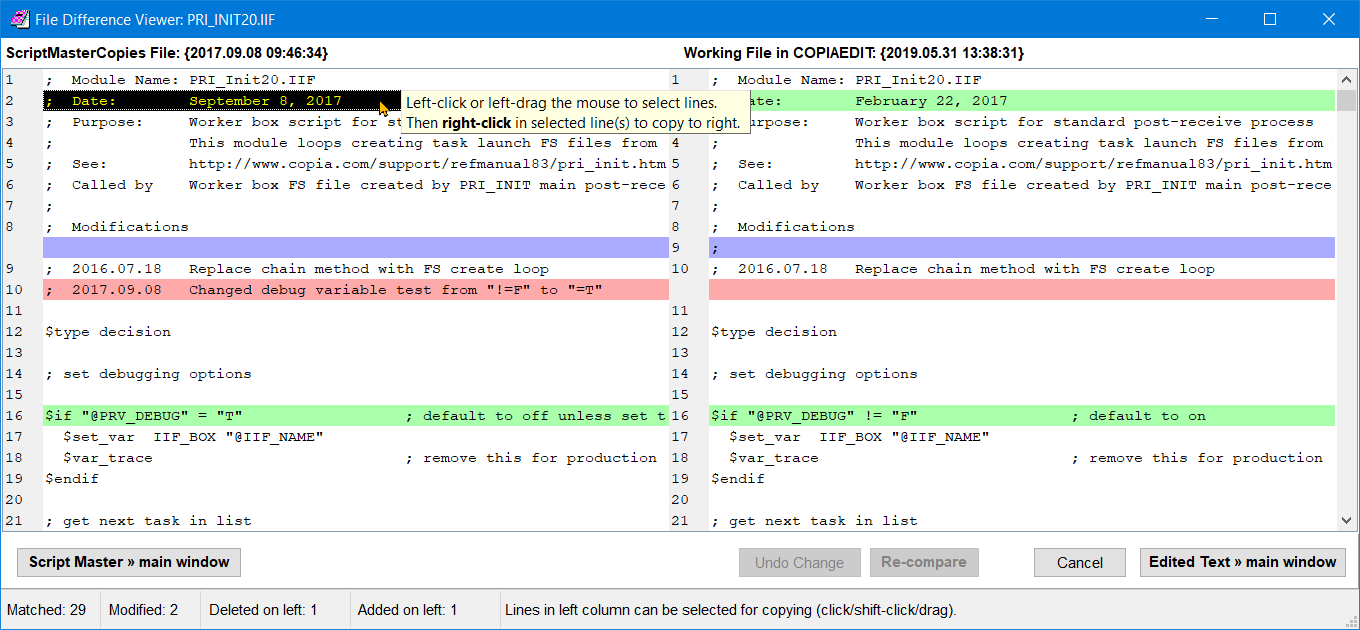
You can apply changes from the difference viewer to your local copy in three ways:
•To replace your working file completely with the new master copy, click the bottom-left button ("Script Master » main window"). This closes the difference viewer. You can also control-click this button, which will instead replace the file, save it, and close COPIAEDIT.
•You can also copy a line or set of contiguous lines from the left panel to the right panel. Click in the left panel to select a single line, then either shift-click at the end of a block to select multiple lines, or drag the cursor with the left button held down. The selected lines will be displayed in yellow on black. Right clicking anywhere in the selected lines will immediately copy the block over to the right-hand panel, which also refreshes the comparison.
•The third method of applying changes to your local copy is to click in the right-hand panel and edit a line directly. Important: after editing each line you must manually refresh the comparison by clicking the 're-compare' button. Until this has been done you will not be able to move lines across or edit other lines.
There is an Undo button which will step back through your edits one-by-one. Details of the next change to be undone are shown in the Undo button hint and on the status line.
After completing a set of edits, click the bottom-right button ("Edited Text » main window"). This closes the difference viewer. You can use the main window to make further edits, and optionally return to the difference viewer using 'Difference Viewer' in the main window. You can also control-click the bottom-right button in the difference viewer, which will instead update the file, save it, and close COPIAEDIT.
The edited file can be saved from the main COPIAEDIT window. Just closing the difference viewer will not have updated the file on your disk.
This help topic can be opened by keying F1 while the difference viewer is open.
You can also update Custom Smart Retry files using the difference viewer described above. This is only possible with custom files based on CF8.SMR or CF9.SMR, because earlier custom files based on FF7.SMR have different spacing, so no entries are matched.
To update the file, first open the custom SMR file in COPIAEDIT using the 'Any text/HTML file' submenu under File/Open. Then if it has been recognized as a CF8- or CF9-based file, and if a later CF9.SMR file is in ScriptMasterCopies, the difference viewer will be offered in a pop-up. Use the difference viewer as described above to copy changes from the new SMR file to your custom SMR file, retaining any overrides that you wish to keep in your current file on the right-hand side.
