View COPIAFACTS, FFTRACE and CFGATEWAY Trace Files
TRCVIEW
TRCVIEW64
The TRCVIEW Program is used to view CopiaFacts daily call trace files from the main COPIAFACTS engine (nodename.TRx) or from all other programs via FFTRACE (nodename.FTx). In these filenames, 'x' designates the day of week.
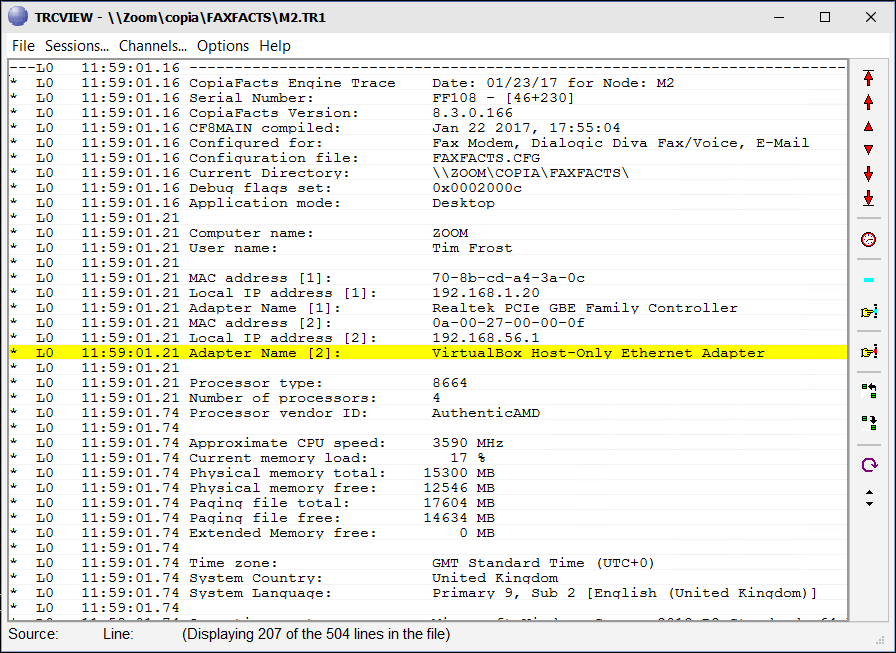
When run on the same machine as COPIAFACTS, loading or reloading the trace file into TRCVIEW automatically causes CopiaFacts to flush the latest buffered data out to the file. This provides an easy way of viewing earlier data than is available in the COPIAFACTS.EXE scroll back buffer. If viewing a COPIAFACTS trace from another machine, click on the globe image in COPIAFACTS to force the trace file to be flushed to disk before loading it in TRCVIEW.
The TRx and FTx files can optionally be associated with TRCVIEW in the installer, so you may double-click them in Explorer. When you restart COPIAFACTS several times in succession, only the latest session appears initially in TRCVIEW. Earlier sessions in the file can be retrieved using the sessions menu. You can also display data for selected groups of channels only. When used to display files created by FFTRACE, the menu allows selection of the different applications to be viewed.
The toolbar on the right provides various ways of navigating the file and highlighting information. See the tool-tip hints for details of the use of each button. Individual text lines can be copied from the trace by right-dragging over the lines or right-clicking a single line. This will pop up a window to allow text to be copied. You can also highlight a file name or path name in this pop-window and right-click it, then if the file can be found a pop-up menu line will allow you to view the file, as described for COPIAEDIT.
TRCVIEW is limited to viewing trace files of up to about 750MB or about a million trace lines. A 64-bit version (TRCVIEW64.exe) is also provided, without a shortcut in the Copia Shortcuts folder; if you frequently need to load larger files you can edit the TRCVIEW shortcut to use this. The 64-bit version should handle files sizes of up to about 3GB (which is very rarely needed). Because a trace file is UTF8-encoded, the maximum number of characters visible (and the limit) may vary with the content.
For handling larger files the environment variable TRCVIEW_LIMIT can be used to specify the approximate number of megabytes you wish to view. The Options menu item 'Start at end of file' determines whether the viewed section is the end or the start of the trace file, and the file must be reloaded after changing this setting. The default limit is 1024 (a 1GB file), because it is slow to load (and to analyze ready for filtering) files of larger than this.
Also, consider disabling some of the trace settings to make the file size more manageable.
Automatic Channel Number and Application Filter
The F9 key can only be used with engine trace files or with FFTRACE files that show channel numbers. When first pressed, the display is filtered on the "CopiaFacts channel number" of the trace line that is shown on the yellow highlight line. The highlight-line color changes to blue. Pressing F9 a second time restores the full display. When this special filter is active the channel number settings from the Channels menu item are ignored. Reloading the same or another file clears the filter if enabled.
Nine 'bookmarks' are available, set with Shift-Control-digit and accessed with Control-digit, for digits 1 to 9. The digit key can be on the main keyboard or on the numeric pad. The bookmarks allow you to quickly return to marked positions in the file.
The bookmark is set on the center highlighted line, and the number is then shown in red at the start of the line, next to the left edge of the window, as the display is scrolled vertically and horizontally. Pressing the same set bookmark key on the same line clears the bookmark. Setting a different bookmark on a bookmarked line replaces the original bookmark. Control-zero clears all bookmarks.
Selecting a bookmark scrolls it to the center line. If the bookmark is on a line that is hidden by filtering on session, channel or application, a 'beep' sounds. If no matching bookmark has been set, the key is ignored.
On the Options menu, there is an option to save any bookmarks you have set. They are saved into the file's Alternate Data Stream, when TRCVIEW is closed or when a new file is opened. This operates as follows:
•The bookmarks are retained if you reload the current file with the icon or F5
•The bookmarks are reloaded if you open the same file later in TRCVIEW, but will be lost when file is cleared for re-use at midnight a week later.
•If the file is still being actively written to when you close it in TRCVIEW, the save of the bookmarks may not be done.
•The bookmark settings in the file are not included if you "send the file to Copia", and they are only saved if the file system is NTFS.
The border color of the trace display, if set, is also saved and restored if saving the bookmarks is enabled.
You can highlight and find string values in the trace lines; open the dialog with Control-F or the blue rectangular button. Multiple strings can be highlighted, each in a separate color, by separating them with an or delimiter (default vertical bar | ), and within each such string you can use an and delimiter (default ampersand & ) to select lines containing all the specified substrings. The and delimiter may be followed by a not marker (default exclamation mark ! )to make an and not join of the filter texts. The not marker should only be used following the and delimiter; it is otherwise simply part of the filter text.
For more information and examples of using delimiters, press the Delimiters button on the TRCVIEW filters dialog:
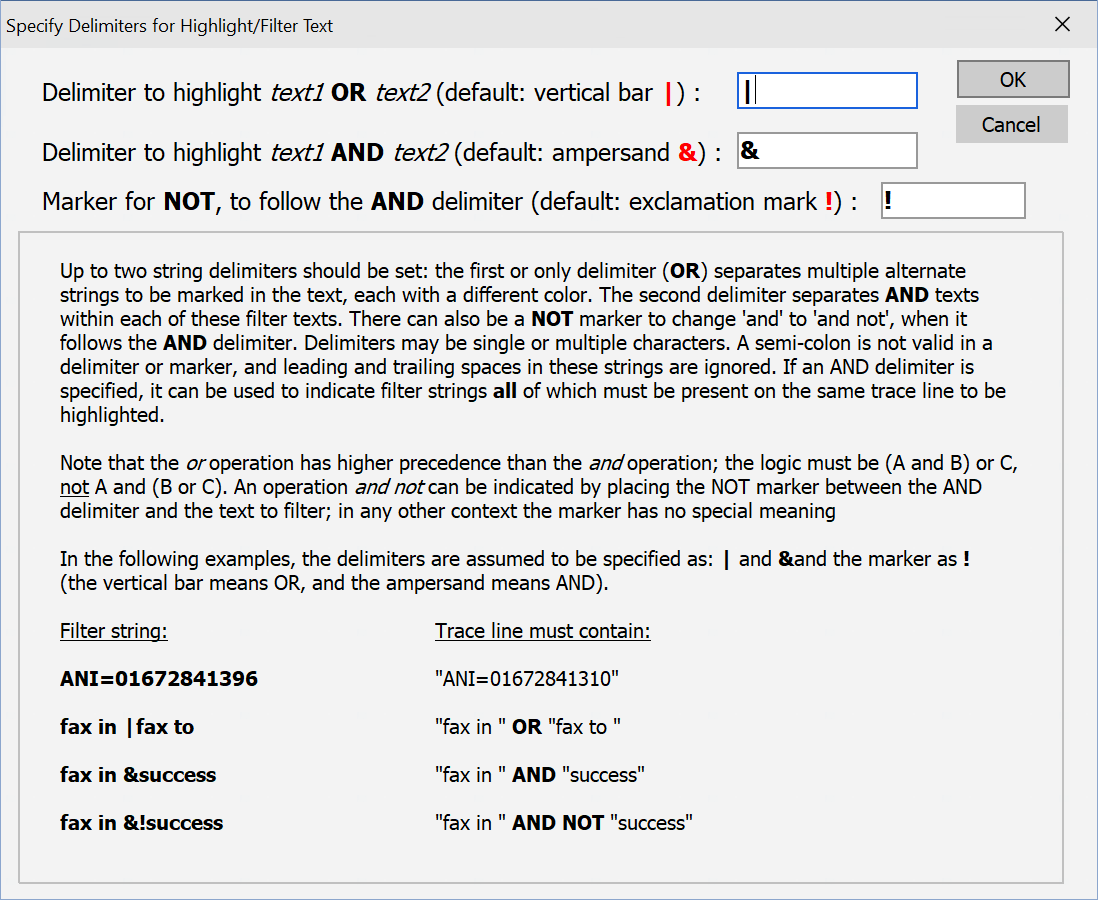
When highlighting has been specified, you can use F7 to toggle the display of only highlighted trace lines or F6 for only non-highlighted trace lines. To see examples, click 'Delimiters' on the highlighting and filtering dialog.
For when you have multiple instances of TRCVIEW open, you can use the Options menu to set the color of the border of the trace area to help to identify them. Colors are saved with the file and restored if reopening it, provided thay Save Bookmarks is enabled. The color is matched on the corners of the taskbar icon.
Background Colors
The following background colors on the center bar show the current mode of TRCVIEW:
Normal Center Bar
Center Bar when Filtered on Channel Number (F9)
Center Bar when Filtered on Highlight Lines (F6/F7)
Center Bar when right-click has opened Select and Copy window
Center Bar when Filtered for "Result:" (control-R)
The following background colors on 'Result' trace lines show the type of the result:
Result: Error (no more retries)
Result: Error (will be retried)
Result: Success
| Ctrl-F | opens the highlight/search dialog: you can specify multiple strings delimited by '|' (and change the delimiter character). |
| Ctrl-R | toggles a temporary filter to show only the "Result:" lines in a trace file. Any existing filtering is disabled, then restored when you press control-R the second time. |
| Ctrl-T | opens the 'go to time' dialog |
| F1 | show this help topic |
| F3/shift-F3 | move forward/back to the next highlight |
| F4/shift-F4 | move forward/back to the next error message |
| F5 | reload trace file |
| F6 | toggle the display of only lines not matching the filter highlight |
| F7 | toggle the display of only lines matching the filter highlight |
| F8 | toggle the suppression of lines containing $set_var |
| F9 | toggle temporary filter using the channel number of the trace line currently on the center highlight bar |
| F11 | show last session only |
| F12 | show all sessions |
| 0 | scroll to start of line |
| Shift-Control-1 | drop bookmark 1 (nine are available, using up to shift-ctrl-9) on the center highlighted line. |
| Control-1 | go to bookmark 1 (nine are available, up to ctrl-9). |
| Control-0 | clear all bookmarks |
Mouse Operations
| Left button drag | Scroll the display up and down. |
| Left double click | Scroll clicked line to center line. |
| Mouse Wheel | In the main window, scrolls vertically; when the mouse is over the horizontal scroll bar, it scrolls horizontally. |
To optimize the speed of TRCVIEW, and to provide faster highlighting, the display window does not allow normal selection and copying. Instead, right-click and drag over a set of lines you want to extract or copy from, to quickly pop up a window which does allow selection. In this window you can highlight and right-click a path name to open common file types shown in the trace, and to copy the selected text into the FFTRACE highlight strings. If you click OK to close the pop-up window, any selected text is placed on the clipboard.
 | When sending trace files to Copia support, please do not send extracted snippets: sending the whole trace file will usually help to resolve the issue more quickly. |
