Editor for HTML Files
COPIAHTML [pathname]
This HTML editor is provided principally for the creation and editing of custom E-Mail body text files, for use when sending fax result notifications or e-mails which send a received fax as an attachment.
The editor can also be used to create and/or adapt files such as the sample HEAD.HTML and FOOT.HTML (in the FAXFACTS\SAMPLES folder) which can be used in custom fax header documents as described in the topic HTML Fax Cover Sheets.
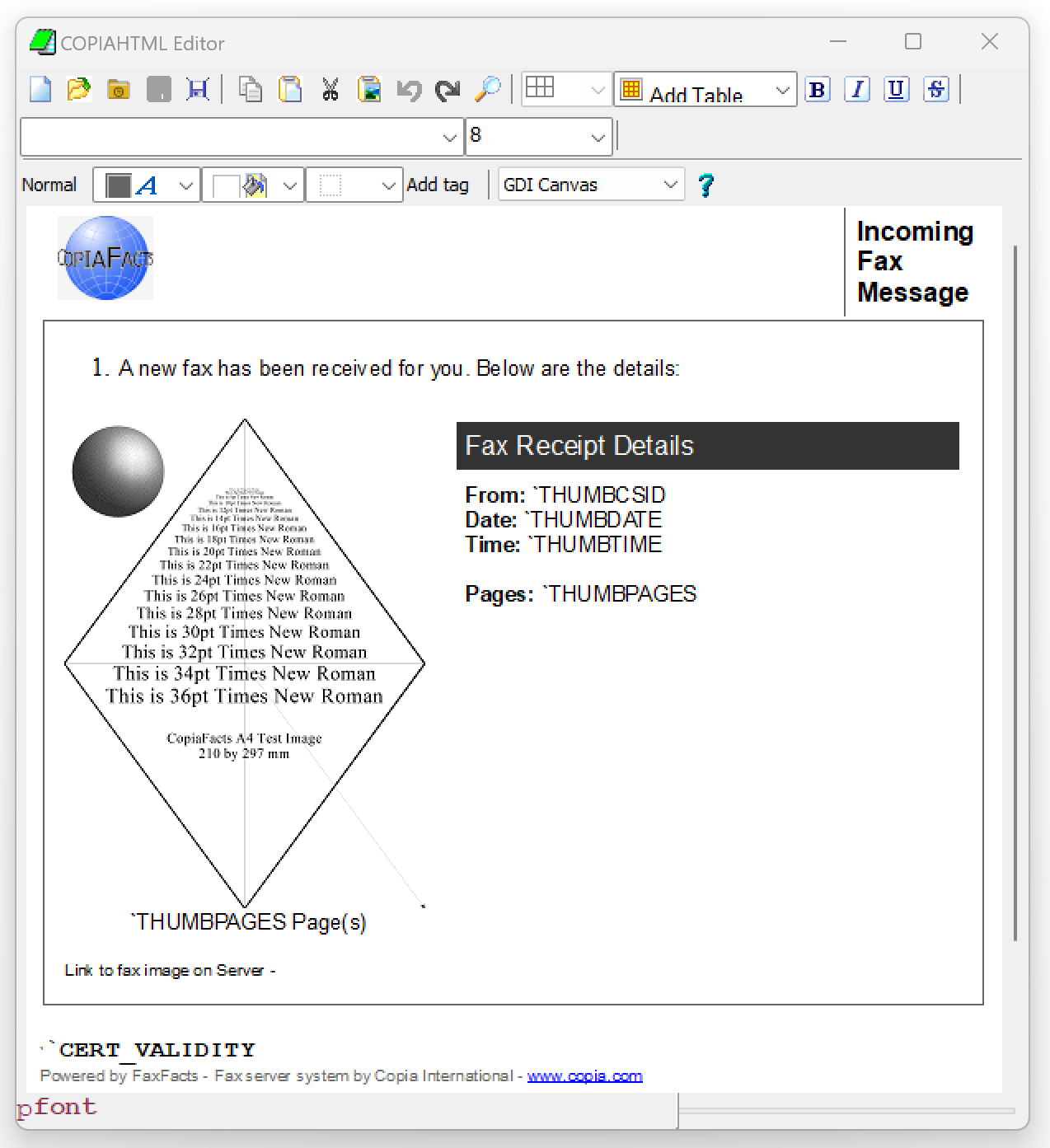
Basic Features
▪WYSIWYG editing.
▪Unicode support.
▪Support for HTML tags.
▪Images, lists, blocks, font styles
▪Copy from/paste to browsers and other applications
▪Changing document scale - use the TrackBar on the bottom status line
to change the size in the editor.
▪Adding images to the document.
▪Right-click to select and add common CopiaFacts variables in the text
Taskbar Icons
You may need to increase the window width to see all the icons. All icons can show pop-up hints, but a hint only appears when the icon is enabled and its use is relevant to the context determined by the most recent mouse cursor action. The icon groups (over two rows) are as follows:
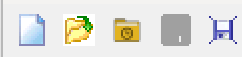
New / Open / Open Recent / Save / Save As

Copy / Paste / Cut / Paste Image / Undo / Redo / Search

Bold / Italic / Underscore / Strikeout / Subscript / Superscript

Left / Right / Center Align / Bullet List / Numbered List (Decimal / A / a / I / i )

Outdent / Indent
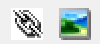
Insert Link / Insert Picture


Table Borders / Add / Row Insert/Delete / Col Insert/Delete / Incr/decr span / Merge Cols


Insert Special Character / View Headers Tree


Font / Font Size / Header Type


Text Color / Background Color / Border Color / HTML Tag
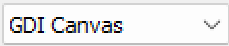
Canvas Type: GDI+ may support more graphics features, but GDI can make small text clearer. Most applications will see no differences,
Images
To add an icon or small fixed image to the HTML document, you can position the cursor and then use the "Paste Image" tool. The image can ve resized as needed by dragging a corner. This will embed the image into document. Do not check the 'embed' checkbox when adding an image such as a fax thumbnail which will be different for each use of the created HTML document.
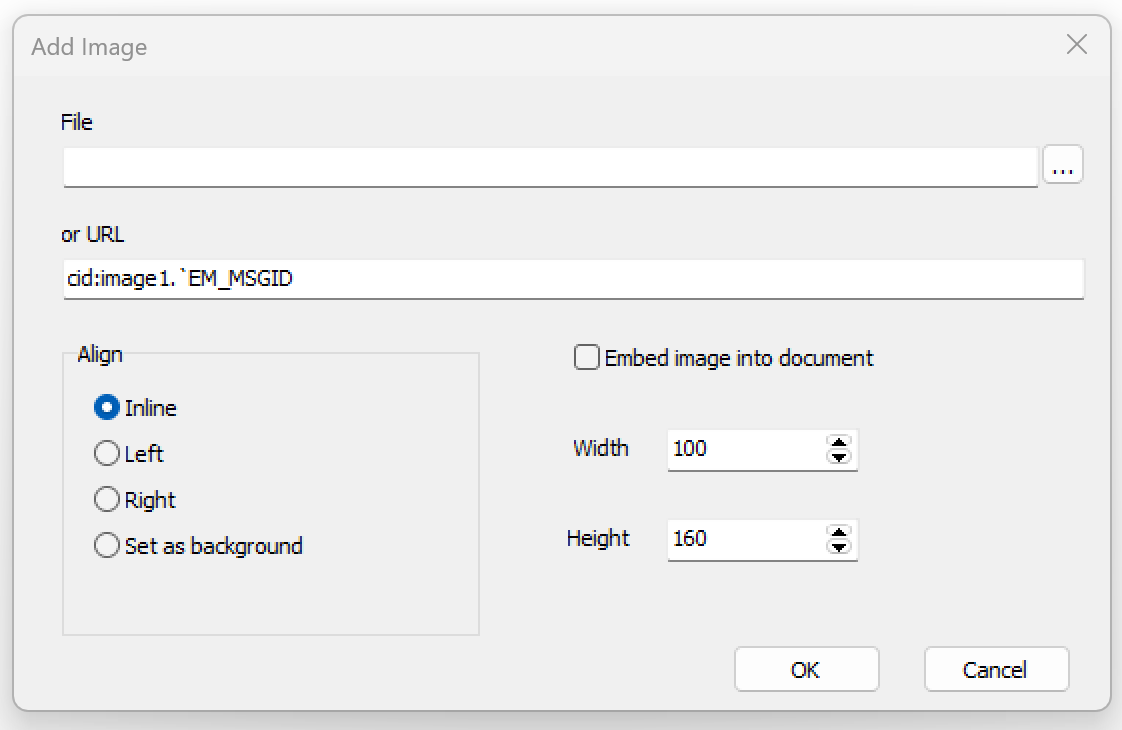
To add image to document use the Add Image button. If the image is to be loaded from a machine on your network it must be located or below the COPIA\FAXFACTS folder. To set image alignment use the right-click menu on the image. To add an image from an e-mail attachment use a Content-ID link, for example cid:image2.`EM_MSGID where the message-ID will be filled from the actual ID when the e-mail is sent. The HTML code will be built from the details you supply in the dialog opened by "Add Image". See also Sending MHTML E-Mail
Working with Lists
You can select a block of lines and use the icons above to set them as a bulleted list or as a numbered list. Or start a line with * to start a bulleted list, or with 1. to start a numbered list.
Keyboard shortcuts
| Ctrl + Left / Right | Next/Previous word |
| Ctrl + Up / Down | Paragraph start/End or Next/Previous |
| Ctrl + Home / End | Start/End of document |
| Ctrl + Alt + 1..5 | Header 1..5 |
| Ctrl + 1, 2, 5 | Line spacing 1, 2, 1.5 |
| Ctrl + Shift+A | Upper case |
| Ctrl + Shift+K | Lower case |
| Ctrl + B | Bold |
| Ctrl + I | Italic |
| Ctrl + U | Underline |
| Ctrl + E | Center alignment |
| Ctrl + L | Left alignment |
| Ctrl + R | Right alignment |
| Ctrl + C / Ctrl + Ins | Copy to clipboard |
| Ctrl + V / Shift + Ins | Paste from clipboard |
| Ctrl + Z | Undo |
| Ctrl + M | Increase indent |
| Ctrl + Shift + M | Decrease indent |
| Ctrl + Alt + C | © |
| Ctrl + Alt + R | ® |
| Ctrl + Alt + T | ™ |
| Ctrl + Alt + - | — |
| Ctrl + - | – |
| Ctrl + Shift + + | Superscript |
| Ctrl + + | Subscript |
| Shift + Enter | Soft line-break |
Autoreplace
The following sequences will be replaced
| (c) | © |
| (tm) | ™ |
| (r) | ® |
Adjusting the Raw HTML
If any small detailed changes are needed, and you are able to work with the HTML code, you can save the HTML output from COPIAHTML and use Function key F12 to toggle between the HTML and the rendered document to check the results of your editing.
