The steps described below are necessary to implement S/MIME encryption and signing for an email-to-fax operation. See also the separate implementation checklist if you also wish to implement TLS security for the Gateway SMTP operations.
Copia Support staff will work with you to navigate the procedures. The following sequence of actions will be recommended:
1. Set Up CopiaFacts SMTP Gateway
If you do not already have the CopiaFacts Gateway set up, you must first configure this and test it for non-encrypted operations. In the examples below, we assume that your main e-mail domain is company.com, and that you have set up a subdomain fax.company.com and the necessary A and MX records in your DNS settings to enable e-mails to be sent to this domain.
The fax.company.com domain must then be set up as a recipient domain on the main Service tab of GWMANAGER.
To check that this step has been completed, use your normal e-mail client to send an e-mail to YourFaxNumber@fax.company.com (substituting the number and domain) and check in the Gateway trace file that the e-mail has been received.
2. License and Configuration Check
S/MIME Encryption/Signing is a CopiaFacts optional feature. Make sure that E-Mail Security is checked in your license (in CFHWL) and that the $email_security command in FAXFACTS.CFG specifies the options you will be using. You will need the three parameters shown:
$email_security * SMIMEencrypt SMIMEsign decodeSMIME
Check that both COPIAFACTS and the CFGATEWAY service can be restarted successfully after adding this command.
3. Set Up a Recipient Mailbox for Secure S/MIME E-Mail
We recommend that you use a mailbox name such as secure, so that encrypted e-mails will be addressed to secure@fax.company.com. Initially you must begin by testing this mailbox with non-encrypted e-mail. We provide a sample file SECURE.FST in the GWRecipientDomains\fax.company.com folder which is a 'workerbox' template which calls a script named GW_EMFORWARD.IIF in the SCRIPTS folder.
The purpose of the script is to forward the incoming non-encrypted e-mail, as an attachment, to the address set up as the system administrator's notification address ($email_notify) This is necessary because when you set up an e-mail signing/encryption certificate (Digital ID) for secure@fax.company.com, your certificate provider is likely to send collection links to the target e-mail address, as well as later administrative instructions and renewal information. The attachment will be a .MSG file which can be opened in Outlook; you may need to rename it to .EML to open it in other mail clients such as Thunderbird.
 | It is essential that you modify the provided scripts to use your own company domain, and send some test e-mails to the secure mailbox, before you attempt to obtain a signing/encryption certificate for this address. However if you are confident that you can set up a certificate for this mailbox without the need for it to receive administrative e-mails, you can of course create a file containing the private and public keys independently. |
Some Certificate suppliers will send administrative e-mail to admin@fax.company.com while setting up a Digital ID for another mailbox at the id such as secure. We therefore recommend that you also set up a similar recipient template for an admin mailbox also. A sample for this ADMIN.FST mailbox is also provided in the GWRecipientDomains\fax.company.com folder. This is also a 'workerbox' template which calls a script named GW_EMFORWARD.IIF in the SCRIPTS folder
Check this step by use your normal e-mail client to send an e-mail to admin@fax.company.com and secure@fax.company.com (substituting the actual domain) and check in the Gateway trace file that the e-mail has been received. At this stage it may not be completely processed, but it should be received by the Gateway.
4. Set up Encrypted Variables in CFHWL
We recommend using the CFHWL password vault to set up Encrypted Variables. This avoids the need for passwords to be entered in command files on $email_decrypt_keyfile and $email_sign_keyfile commands. Follow the instructions to set up encrypted passwords in CFHWL ready for use when you have obtained and saved your Signing/Encryption certificate.
5. Obtain a Signing/Encryption Certificate for the 'secure' Mailbox
This type of certificate is also known as a Digital ID, and can be obtained from a number of main vendors and their resellers. If your company already has Digital IDs for staff members, you should obtain one also for the secure@fax.company.com address. Note that the domain for email-to-fax is not the same that for your normal corporate e-mail.
The certificate supplier will provide details for downloading the certificate. Using Firefox is recommended to obtain the certificate, but follow the instructions from your certificate supplier if in doubt. The certificate will be saved to your browser certificate store; from there you should normally save it out to a .PFX or .P12 file (with a password). Some examples of the save procedures are available in the sub-topics of Appendix N.
| We recommend that the file name you choose for the file should include the expiration date, for example secure20190831.pfx. This is useful to distinguish different files after renewal, and also as a reminder of an upcoming renewal date. The file should normally be placed in the base GWRecipientDomains folder. You can use up to four files with different dates and should not remove older unexpired files while senders may still be using their matching public keys for encryption. |
| The Gateway accepts files with extensions .PFX and .P12 (and .PEM, less common) for this purpose. You can use whichever of these extensions is recommended when you export/backup the certificate from your browser or mail client; different browsers use different extensions, but the file contents are equivalent. |
We recommend that you save the certificate for secure@fax.company.com in the GWRecipientDomains folder Gateway so that it can be accessed by CopiaFacts applications on all nodes. The command to access the certificate(s) in your template files will then for example be:
$email_decrypt_keyfile "`FFBASE\GWRecipientTemplates\secure20200831.p12;`SECRET1"
$email_decrypt_keyfile "`FFBASE\GWRecipientTemplates\secure20220831.p12;`SECRET2"
The file containing the certificate will be named on a $email_decrypt_keyfile command in the SECURE.FST template file. This file will also be needed when you send signed e-mail from the Gateway to supply senders with the public key which they will use to send encrypted messages. If you use the invitation mechanism described below, the parameters on this command will be used to generate an $email_sign_keyfile in the outgoing FS file.
If you have saved the password in CFHWL as an encrypted variable and then you must add an $authenticate command at the top of the FST file. You will then have to enter the CFHWL vault password to save any changes to the template in GWMANAGER or COPIAEDIT. Editing the template in Notepad or elsewhere will cause the authentication to fail.
See the comments in the sample template file for more details: after editing and uncommenting the $email_decrypt_keyfile in the comments at the bottom of SECURE,FST, and moving and uncommenting the $authenticate to the top of the file, and clicking apply, you should see:
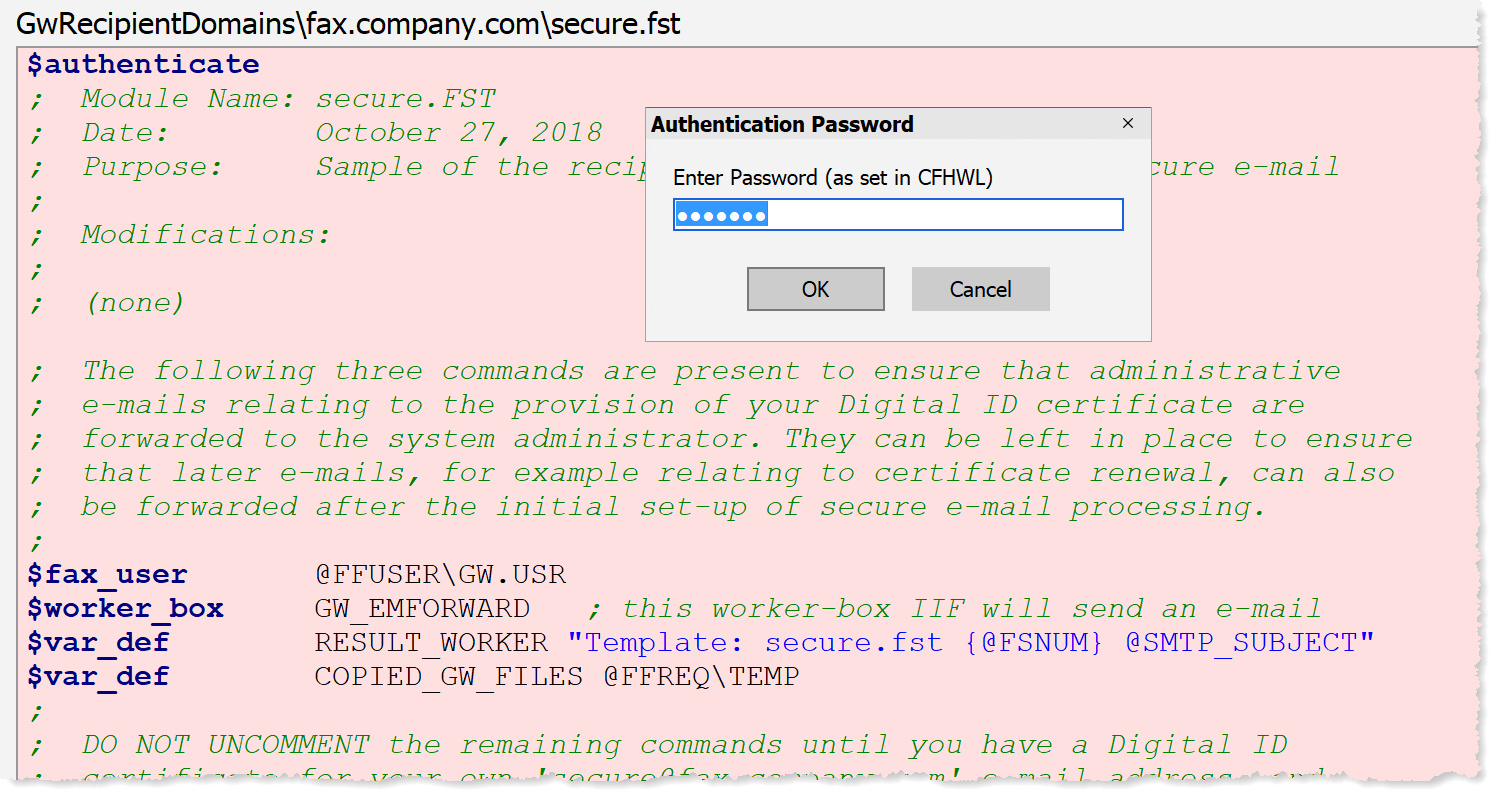
And then after entering the vault password and clicking OK, you should see:
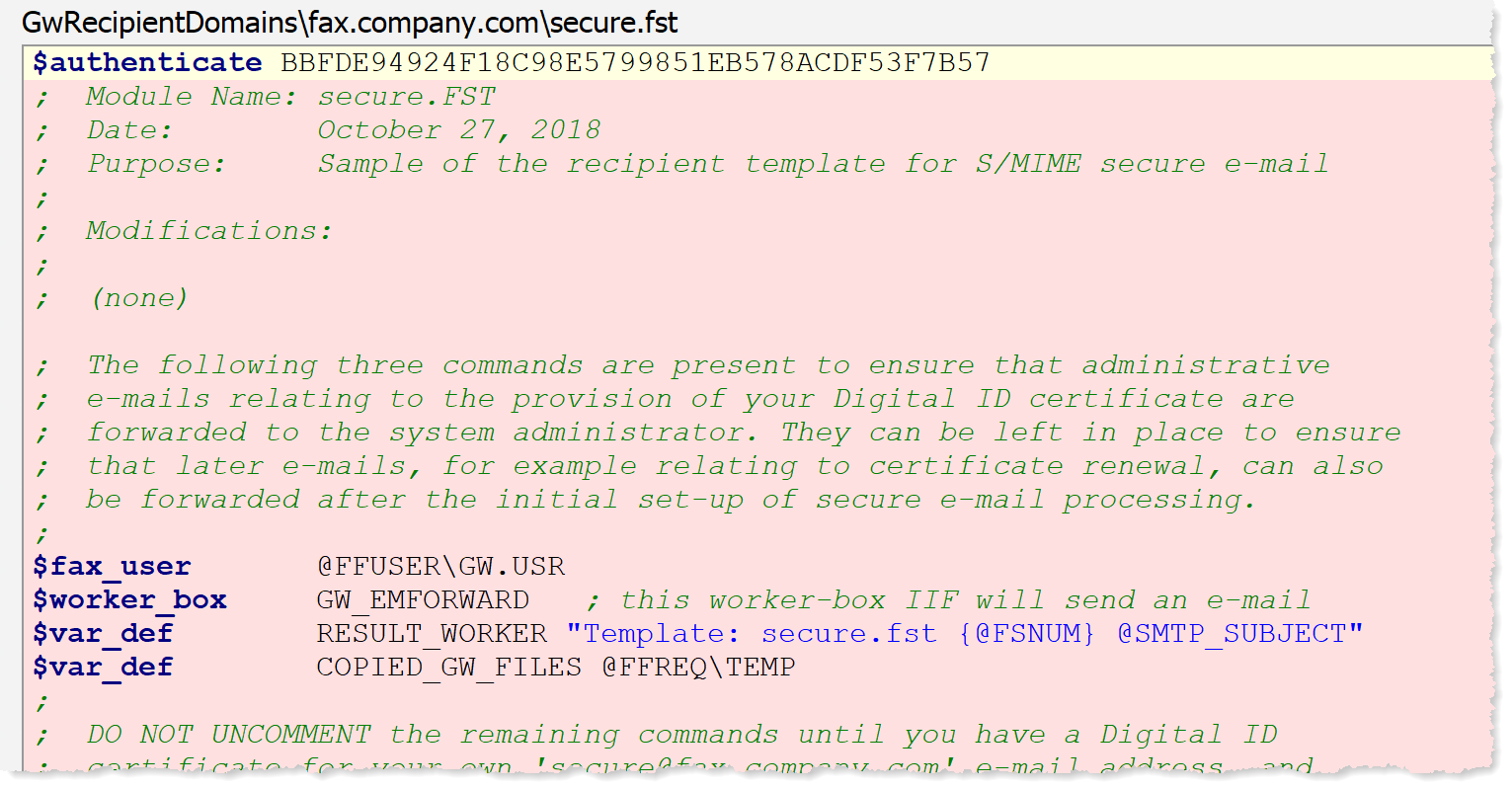
Note that although authentication is required if you include a SECRET variable in the FST file, the `SECRET1 variable does not need an $authenticate command when in the generated FS file.
6. Set up a Personal Digital ID
You will also need your own personal signing/encryption certificate, for example for your personal e-mail yourname@company.com, in order to send test encrypted e-mails to the CopiaFacts Gateway. Install this in your normal e-mail client.
To test that this is working, write a test e-mail to a colleague and specify in your mail client that it is to be signed, then verify that it is marked as signed in your colleagues mail client software.
7. Customize Notifications
In FAXFACTS.CFG, we recommend adding a variable to specify the validity of the sender public key in notifications sent to senders. This is done by adding a command based on the following sample:
$var_def CERT_VALIDITY "Your encryption certificate expires on `vdate6 at `vtime3"
You should also review and edit the supplied sample files GW_WARNINGS_INC.IIF and GW_ERRORS_INC.IIF. These files can be included in scripts such as GW_SECURE_NOTIFY.IIF to explain in more detail the errors which may be reported.
8. Set up a Sender Mailbox for Testing
Each sender of encrypted e-mail must have a Sender Template. Start by setting up your own test mailbox, for example yourname@company.com and its template file YOURNAME.FST in the GWTEMPLATES\company.com folder. This is a Sender Template for your main company domain, not the domain for which the Gateway receives e-mail, fax.company.com.
| When setting up a new sender template from the provided Master Template (GWTEMPLATES\UserTemplate.FST), DO NOT select (uncomment) the commands for creating S/MIME secure notifications at this stage, before the new sender's public key has been received. If both sets of commands are found in the sender template, the Gateway service will change the template to switch to use the secure set when the public key (.CER) has been successfully saved from the first incoming e-mail. |
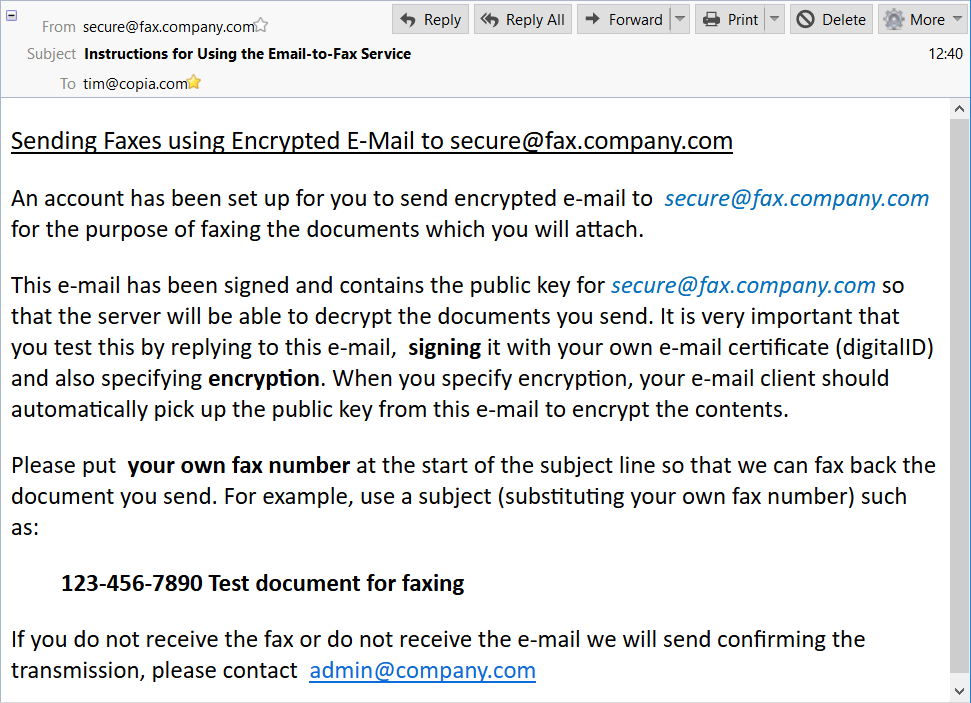
Edit the provided outbound template file in TEMPLATES\GWINVITE.FST which will invite senders to send signed and encrypted e-mail to the Gateway. This template file sends a signed e-mail from secure@fax.company.com which will include the public key from securefax.P12. Having this public key is necessary to enable the sender to encrypt e-mails to the Gateway. The sample GWINVITE.FST file includes suggested wording for the instructions which have to be followed by your senders. This template must be used to send an e-mail to each person who will be sending encrypted email to the Gateway. Click to show a Sample received e-mail
Use the Send Signed E-Mail button on the sender template dialog for your own test mailbox to send the invitation to yourname@company.com.
This button will only appear when the $email_security decodeSMIME keyword is present. If there are no recipient templates containing an $email_decrypt_keyfile command, or if a certificate file for the corresponding mailbox (secure@fax.company.com) does not exist, then a warning message will appear and no e-mail will be sent.
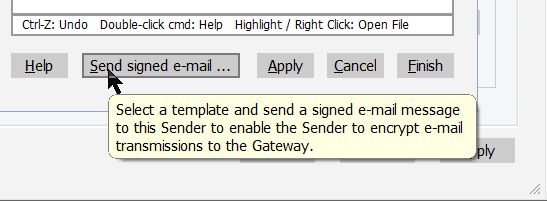
The button will display a dialog to select which recipient mailbox to select as sender (if more than one) and to confirm the recipient address and the template to be used (default GWINVITE.FST). Only recipient mailboxes which contain an $email_decrypt_keyfile command will appear in the from address; other mailboxes would not be able to accept an encrypted e-mail from the invitee.
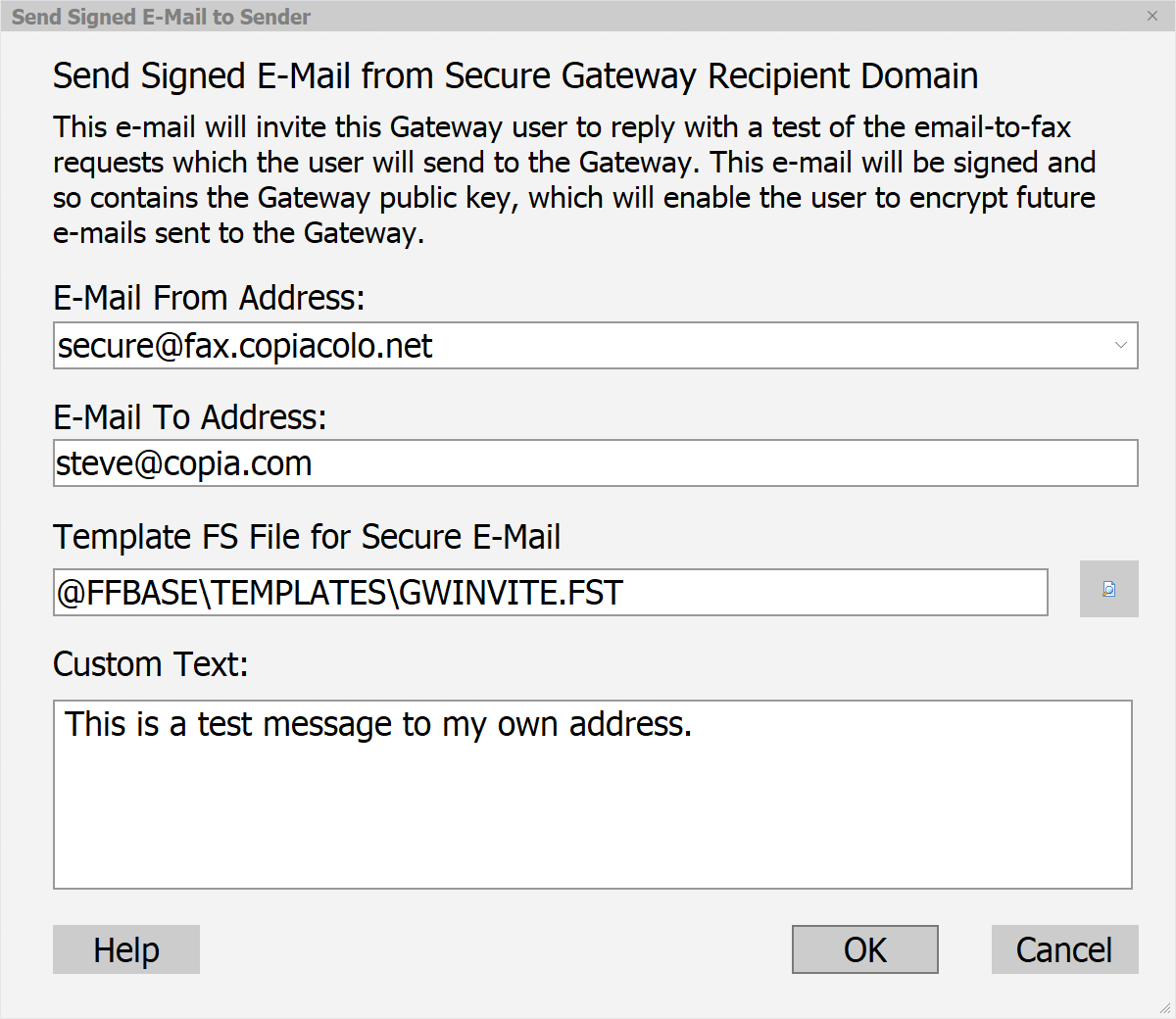
The GWI_ADMIN variable in the GWINVITE.FST file should be configured as the name of the responsible person in your company if the use of this variable is retained in the template. The GWI_EMAIL and GWI_CUSTOM variables in the template are updated automatically in the generated FS file for the invitation. If you wish to add other customization of the invitation for different senders, you can add variables in GWINVITE.FST with names starting GWI_ and then define these variables in each sender template file. Variable definitions starting GWI_ will be transferred to the start of each generated invitation's FS file.
9. Send a Test Encrypted E-Mail to the Gateway
When you receive the invitation e-mail at yourname@company.com you can reply to it in order to send a signed and encrypted test e-mail to the Gateway at secure@fax.company.com. You should enter your own fax number in the subject of the e-mail, and attach a document to be faxed.
On receipt of this e-mail, the Gateway should:
•Decrypt the e-mail using the private key from securefaxyyyymmdd.P12
•Save your own public key in faxfacts\certificates\admin#company.com.CER
•Send the fax to your fax number
•If you are using the notification options in the provided sample script, send you a signed and encrypted notification of the fax result. This is signed using the private key from securefaxyyyymmdd.P12 and encrypted using your public key from admin#company.com.CER.
Verify that all the above actions have occurred.
10. Add more Sender Mailboxes and Sender Templates
When you are satisfied that the workflow is running smoothly, you can add more senders using the same procedure that you used to add your own test sender mailbox.
11. Further Maintenance Operations
If one of your senders changes their Digital ID, the next time they send encrypted e-mail to you their public key will be re-saved, allowing you to continue to encrypt notifications to them if required.
If the Digital ID for secure@fax.company.com changes, or if a new certificate replaces an expired one, you will need to send signed e-mails to the senders from secure@fax.company.com which should cause their mail client software to re-save your public key. With a list of your senders' e-mail addresses, you can use FFBC to send multiple signed e-mails based on GWINVITE.FST to all senders. Before sending these signed e-mails, you will need to have updated the $email_sign_keyfile command in GWINVITE.FST and added a new $email_decrypt_keyfile to the recipient template.
| When your S/MIME certificate has been renewed, you should add a new $email_decrypt_keyfile command to the recipient template and also retain the old command. This allows users to continue to send encrypted mail to the Gateway using the public key they already have until they have received your new public key in a signed e-mail. Up to four such commands may be used in the template file, but normally only the current and immediately previous commands are needed. |
You should always plan carefully for S/MIME certificate changes and renewals, to avoid disruption of service to your users.
