Hardware and License Control Program
CFHWL [directory]
The CFHWL program is provided to allow the CopiaFacts system administrator to add additional channels and license options to the installation. This program is also used to set up channel capabilities and options.
CFHWL is set as the associated application for .CopiaKey files, which will be e-mailed to you when your license details change or when you renew CopiaFacts maintenance. You can then double-click this file to install the new license parameters and key, without changing your configuration details.
The program starts by showing a treeview to summarize the current configuration. It reads the FAXCOUNT.HWL file from the CopiaFacts data area (the FAXFACTS folder) to do this. For special purposes you can view the license file from an alternate directory by naming the folder on the command line.
The treeview shows the license, the configured nodes, and a summary of the boards, ports, operations and channels in each node. If you have started with an evaluation copy of CopiaFacts, it will show the minimal configuration.
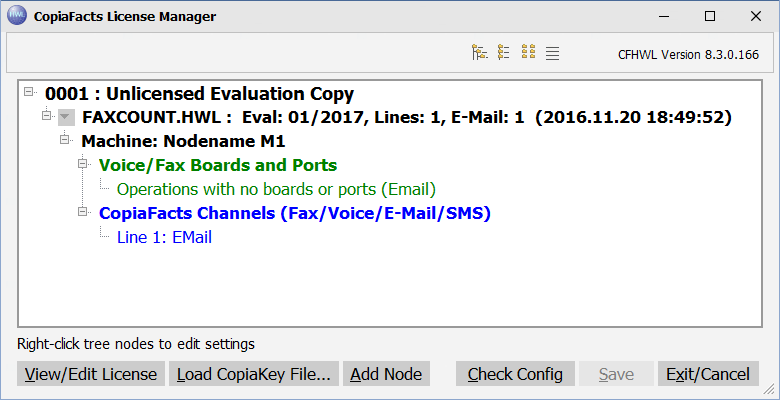
The evaluation license allows access to all the CopiaFacts programs and simulated voice and fax operations. To install a full CopiaFacts license, you may be supplied with a ready-configured FAXCOUNT.HWL file, but you can also configure the license by loading just a key file, or by manually entering your assigned serial number and key.
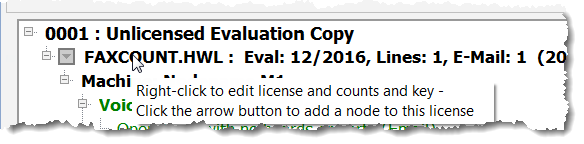
To access the license manager, right-click the FAXCOUNT.HWL line:
This will open the License Manager screen:
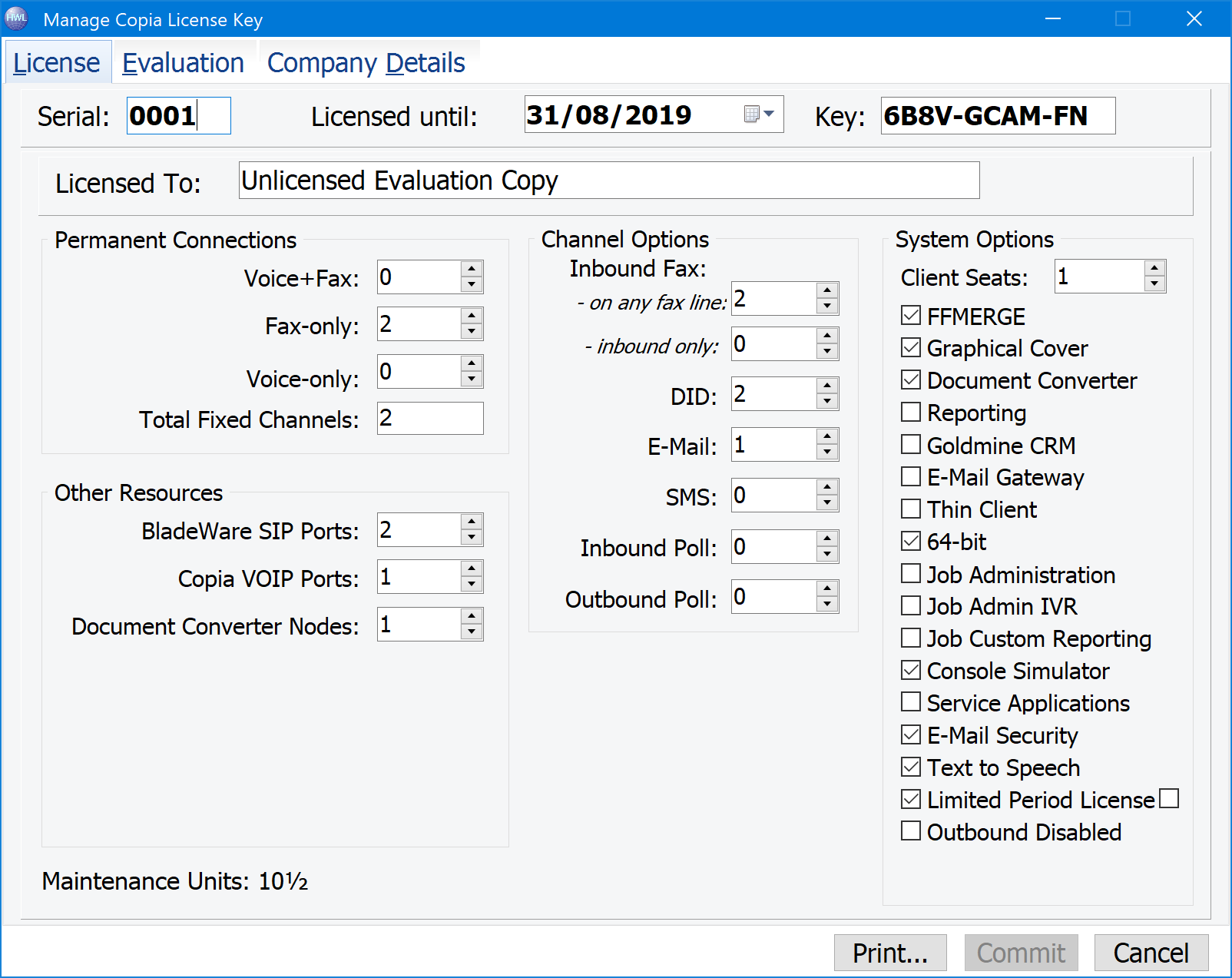
On the above screen, with an evaluation serial number such as 0001, you can manually edit the serial number, company name, and license counts and options, and enter the license key supplied. However if you have a license key file (with .CopiaKey extension) it is simpler to load this file directly. A new .CopiaKey file will also be issued when you renew maintenance and can either be added from this screen without altering your CopiaFacts node and channel configuration details, or double-clicked to apply it automatically (without opening the configurator).
 | Do not save the .CopiaKey file on your desktop. It will appear with an 'HWL' icon, and may accidentally be double-clicked later if confused with CFHWL.EXE. This would install the key rather than opening CFHWL. |
To load a Copia Key file manually, cancel from the screen above, and click the button:
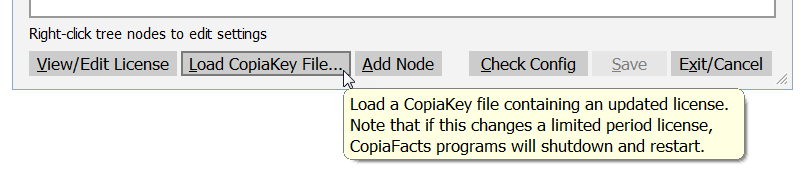
and then navigate to where you have saved the supplied key file:
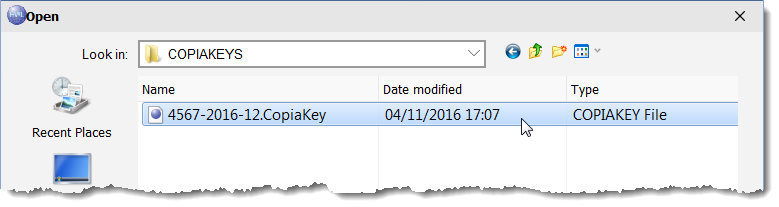
Each Copia Key file will be named with your serial number and the year and month of maintenance expiration (or license expiration, for limited period licenses). Loading the Copia Key file will then show the details of your license:
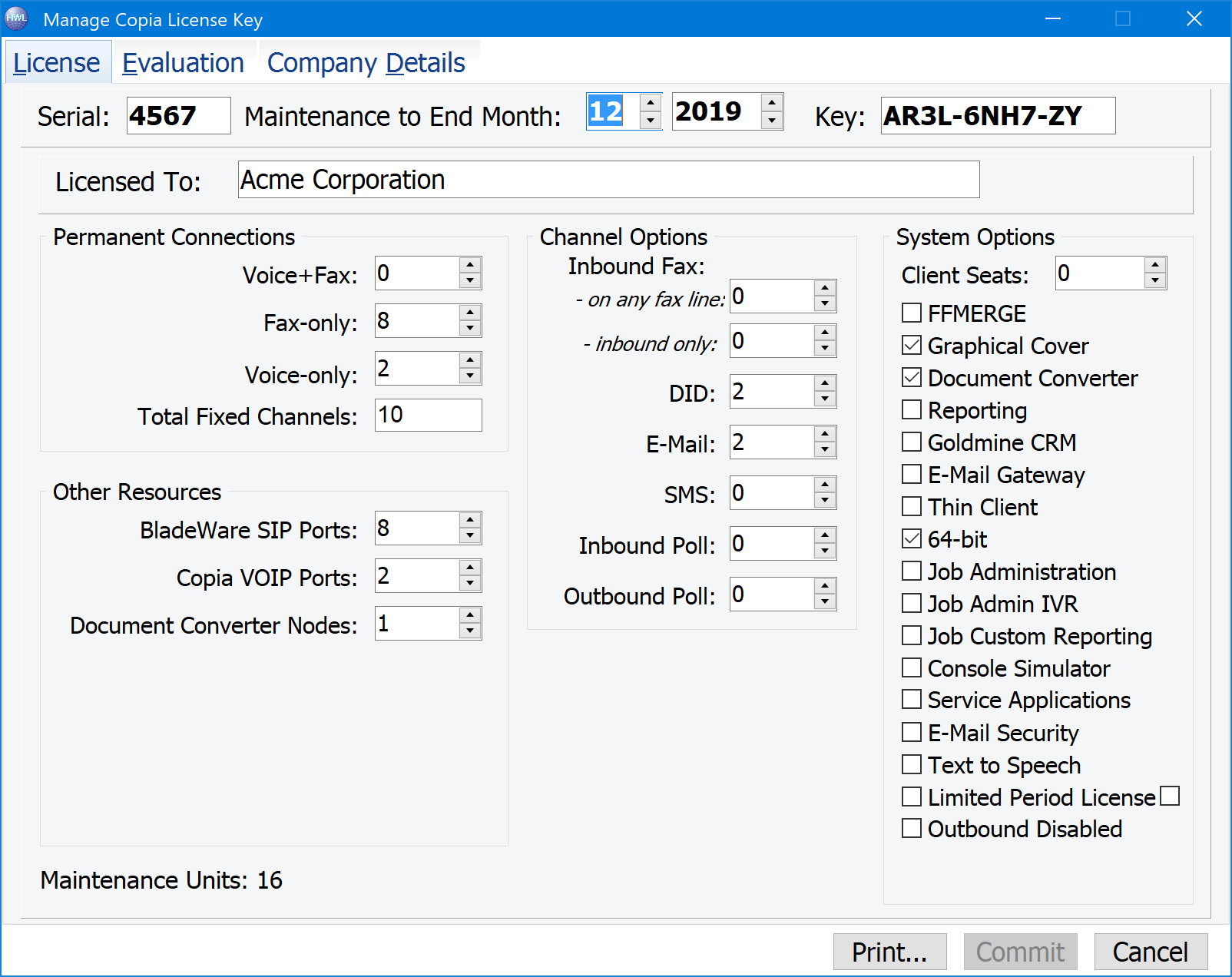
The Commit button completes the license changes and returns you to the main configurator screen. Your FAXCOUNT.HWL file will not be saved until you save from the main configurator screen. Before saving the FAXCOUNT.HWL file the license is checked, and will pop-up a list of errors if necessary. You can also perform a manual check by clicking the button:
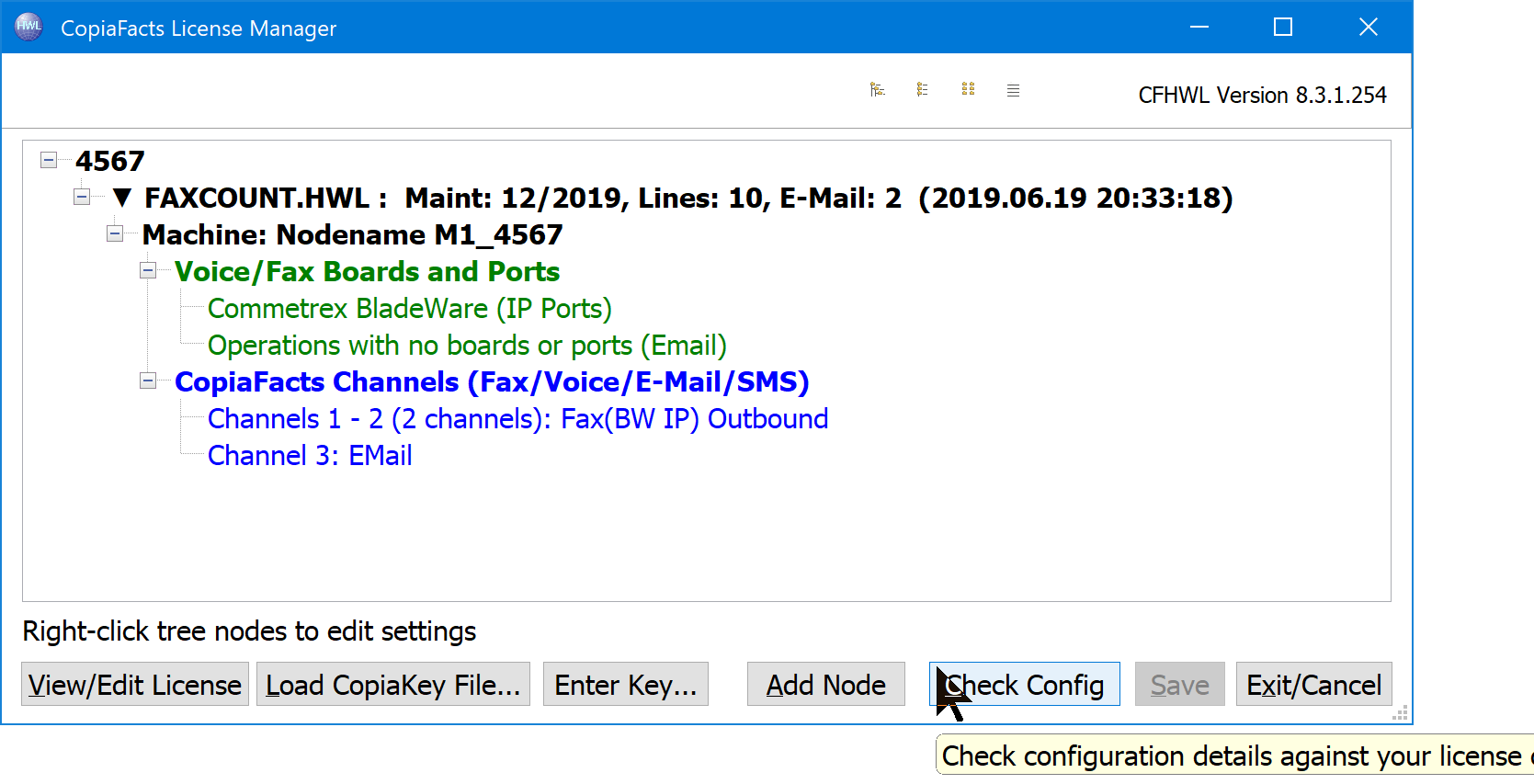
The Check License button shows both warnings (in dark red) and errors (in bold red). Warnings cover such things as unused channels and gaps in channel sequences. These are not necessarily error conditions, but may indicate an unusual situation.
From the main configurator screen you can change details of your configuration as described in the following sections:
Adding, renaming and deleting machine nodes
Maintenance Renewal / Extending License
