E-Mail Configuration and Testing 
EMSETUP
The EMSETUP program displays data to assist in the configuration of CopiaFacts e-mail transmissions. It must be run on each node that is used for CopiaFacts e-mail operations, to configure transmissions on that node. It is needed both for normal e-mail sending and broadcasting, generated from FS files, and also for processing system notifications and for special e-mail sent via your ISP instead of direct to the recipient's mailserver.
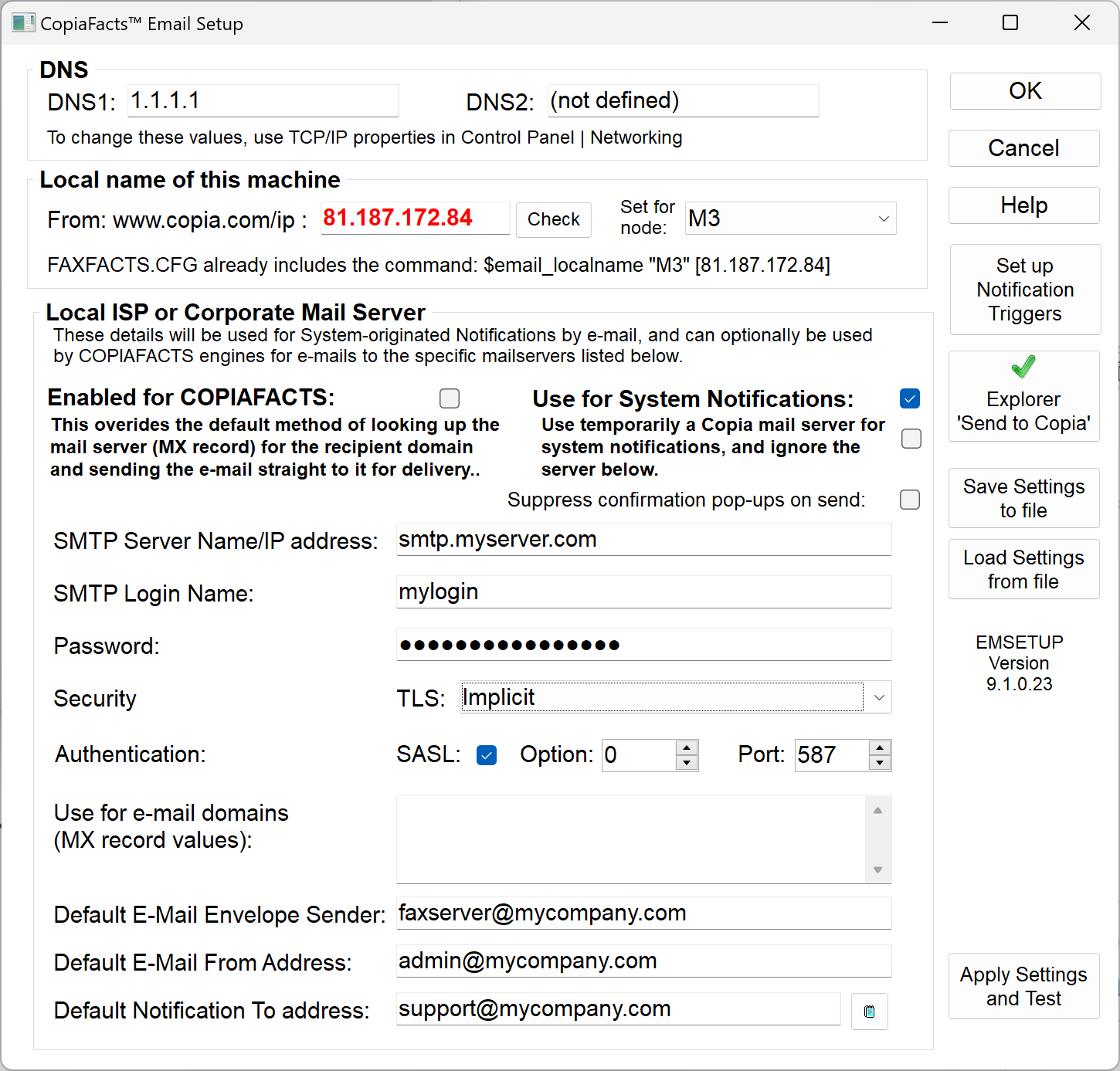
DNS Settings
The top box in the EMSETUP window displays the DNS settings of the node which will be used by CF9EMAIL.DLL. If no items, or incorrect items, are shown, then you need to use Windows network settings dialogs to fix this:

Localname Settings
The second box displays the IP address determined by visiting www.copia.com/ip. This shows the detected IP address from your IP headers:

If an externally-visible IP address is located for your machine, it will be saved in your FAXFACTS.CFG as $email_localname. The node pulldown will show the COPIAFACTS node last running on the machine, or if COPIAFACTS has not yet been run, will show the first or only configured node.
You can use the node pulldown can be used to set the $email_localname for a different COPIAFACTS node which runs on the same machine (run EMSETUP multiple times to do this) or to configure ALL NODES (*), or to suppress updating the $email_localname command (select 'none'). A warning will be displayed, when you save, if your selection would delete or duplicate definitions.
 | Do not select a node name for a different machine: instead run EMSETUP on the other machine. |
Local ISP or Corporate Mail Server Settings
| IMPORTANT - Using a Mail Server provided by an ISP or by your company is not the default method of sending e-mail from CopiaFacts. CopiaFacts normally acts as a traditional mail client: we use DNS to look up the Mail Sever for the destination domain, and send e-mail to that mail server using SMTP. |
The third box should be completed with details of the local SMTP mailserver (at your ISP, or perhaps your corporate mailserver) which will be used either for sending specific e-mails, or for sending automated notifications of serious system errors. The latter are sent by EMDIRECT and not by normal COPIAFACTS engines, in order to ensure that they can still be sent if the CopiaFacts queues are inaccessible.
| Option 3 at the above link covers the creation of a connector for this purpose. This can optionally be set up to use TLS security and a certificate, but since the COPIAFACTS server will be at a known local IP address, you may find it easier to set up IP Address-based authentication as described at this subsection of the above link: |
| Setting up the connector in your Microsoft 365 or Office 365 environment will normally be the responsibility of your IT support personnel. If you are running multiple COPIAFACTS nodes on separate machines which send e-mail via this route, you may need a connector for each one. |
| In July 2024, Microsoft announced that many types of the Connectors linked and documented here for outbound e-mail, and in the CopiaFacts SMTP Gateway for CopiaFacts inbound e-mail, could not be created after August and would stop working after October 2024. Subsequently, and after user comments, the October date has been changed to December 2025. The implications of this announcement are being investigated. |
Sending e-mails via a local mailserver (such as that provided by your ISP, or a corporate mailserver) instead of CopiaFacts contacting directly the recipient's mailserver should not be selected if you are sending large volumes of e-mail, such as e-mail broadcasts. It causes e-mails to take longer to arrive and removes the ability to detect delivery failures. However you should still enter the information in this section so that you can receive automatic e-mails from the system in the event of serious problems occurring.
| For notifications only, you can choose to use a secure Copia-provided mail server on a temporary basis, which avoids the need to find and enter the credentials and settings for your ISP login when setting up a new system. This server is never used for sending e-mail from COPIAFACTS, only for occasional notifications and for sending files to Copia. If you have entries in this section, most of them are highlighted in red and ignored for system notifications; but the To: address can be set, both as a default and separately for each notification trigger action, and From: address is used as a Reply-To: address in the outgoing notification. |
| As soon as you have a local mail server configured for notifications (or for use by COPIAFACTS for normal e-mail) please uncheck the checkbox which specifies the use of the Copia-provided server. |
| If you use this built-in server, please enter your own E-Mail address in the From: field this enables the recipient to reply to the notification correctly. If you fail to do this, any replies to the notification will be sent to the built-in mail account, where they may be discarded. |

Enter the normal SMTP server, login and password information that you would normally enter in a mail client. The authentication box should be checked to force an authenticated login. If authentication is not needed on your server, the login name and password fields must be left empty.
If you leave the e-mail domains box blank, all e-mail will be sent via the ISP when Enabled for CopiaFacts is checked. The entries in this box must otherwise be the MX record names for the domain(s) you wish to handle in this way. For example if you want to add mail to yahoo.com, first obtain the MX records for yahoo.com:
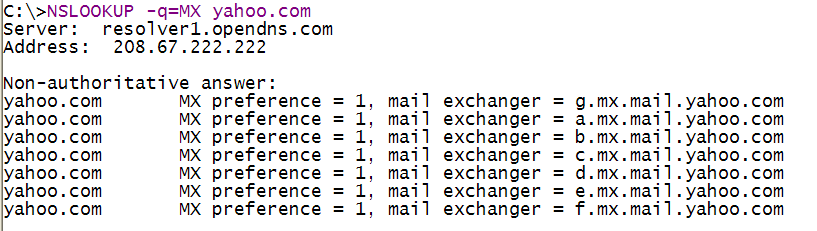
All you need to enter in the e-mail domains box is a common and unique substring which will identify mail to one of these MX domains:

Mail directed to any MX record name which has "mx.mail.yahoo.com" as a substring will then be sent instead via the nominated ISP.
The local ISP specified is also used as the mailserver when a retry delay value in an $email_retry_delays command has a prefix of 'I' (as documented in $retry_delays). Note that if this is only use you will make of the via-ISP feature, you must enter a string in the e-mail domains box which cannot be a substring of any domain name. This is because leaving the box empty causes all e-mail to be sent via the specified ISP. A suitable substring is "@" since this is not a valid character in a domain name:

The above entry in conjunction with an ISP login will set up for sending e-mail via the ISP, but will not automatically send e-mail by this means. The $retry_delays 'I' prefix will only send e-mail via the ISP for the specific retry operation.
In the three fields at the foot of this box you can enter the default e-mail address to be placed on the $email_esender and $email_from commands, and the $email_notify command, in FAXFACTS.CFG. These three values are made available respectively in the EMAIL_FROM, EMAIL_ESENDER, and EMAIL_NOTIFY variables, although the first two will normally be overridden by FS variables of the same name. Note that these configuration command are always updated when you run EMSETUP and save settings.

In the default envelope and from addresses, do NOT use your Gateway email-to-fax domain name (e.g. fax.company.com). Doing this risks an out-of-office reply to your notification being sent to the Gateway, where it will be rejected and perhaps a new notification will be sent about the rejection, and this then.........
When the system sends notifications automatically, the Default Notification To address can be overridden for individual triggers. This allows the e-mails to be sent or copied to separate recipients. For this entry field, use the adjoining button to enter addresses, including multiple To addresses and CC addresses. The internal format for such address lists is as described in Sending to Multiple Recipients.
The options for secure e-mail should only be set if your server supports this. Unlike normal e-mail transmission from CopiaFacts, which allows TLS to be specified as optional, the settings here are for a specific server, and you need to know whether that server supports TLS and which mode it expects on the selected port. When explicit mode is used, the client connects to the SMTP server without any encryption and then requires a STARTTLS capability from the server to initiate it. When implicit mode is used, the client connects to the specified port and a TLS session is established at once. The whole SMTP communication is then encrypted.
The option field controls how the TLS certificate is validated and allows selection of one or more validation items to be relaxed. It takes an additive value as shown: right-click the field to display this menu and select the options:
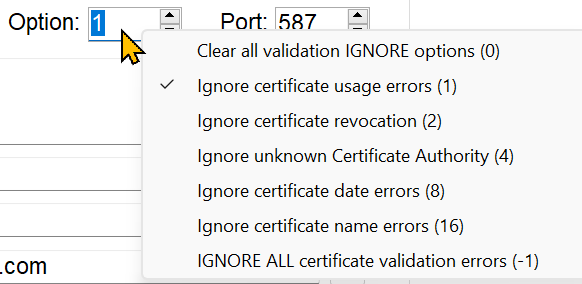
This option is equivalent to the system variable TLS_OPTION in normal e-mail sent by COPIAFACTS. The value -1 accepts all certificates (not recommended), including some with errors other than those listed.
The general advice is to enter the same server, username, password, port and security settings and port settings that you use in your mail client such as Outlook or Thunderbird. However some servers are difficult to configure and we will attempt to build up a list of these, in the list which appears when you click the link below. Note that these settings may change over time as the mail servers change.Automatic Triggers

A set of automatic triggers can be set up, using the button above, which will cause an e-mail to be sent (using the default settings described above) when the associated event occurs. The current list is as shown in this subtopic.
Using EMDIRECT and EMSETUP on multiple machines
The automatic system notifications sent when 'triggered' are sent by the corresponding application running EMDIRECT. Because EMDIRECT is by design a standalone application, it is not aware of CopiaFacts applications other than on the machine on which it is running. So for example to enable a trigger to send an e-mail on job launch failure, EMDIRECT must be installed and configured on the machine which is launching the job.
To assist with configuring EMDIRECT on multiple machines, you can use the 'load' and 'save' buttons to save all the ISP settings and triggers and load them on another machine. These settings are stored in EMDIRECT.INI in the main FAXFACTS folder. The e-mail localname is not included because it may change on different machines.
| Important: the settings in EMDIRECT.INI are not used by any CopiaFacts application. The file is provided only to help with setting up e-mail on multiple nodes. |
Explorer Right-Click Menu Item 'Send to Copia'
This button enables or disables a Windows Explorer "Send To" item (accessed from the Explorer right-click menu) which allows a file to be selected for e-mailing to Copia support. This feature can be used as a convenient means to send a trace file or a file about which you have a query. It is described in more detail in the dialog which the button brings up:
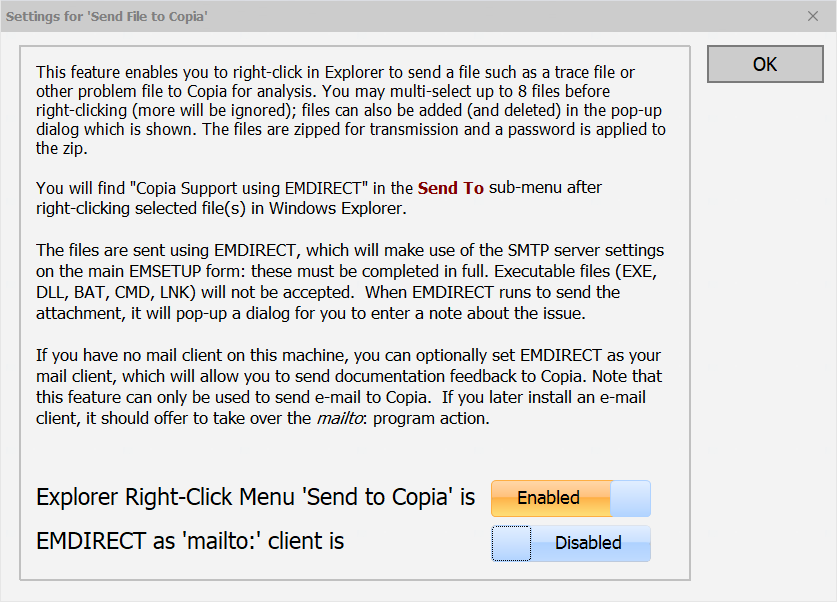
When you have selected files in Explorer, right-click one of them and select "Send To", then "Copia Support using EMDIRECT". The following screen is an example of the dialog that will be displayed:
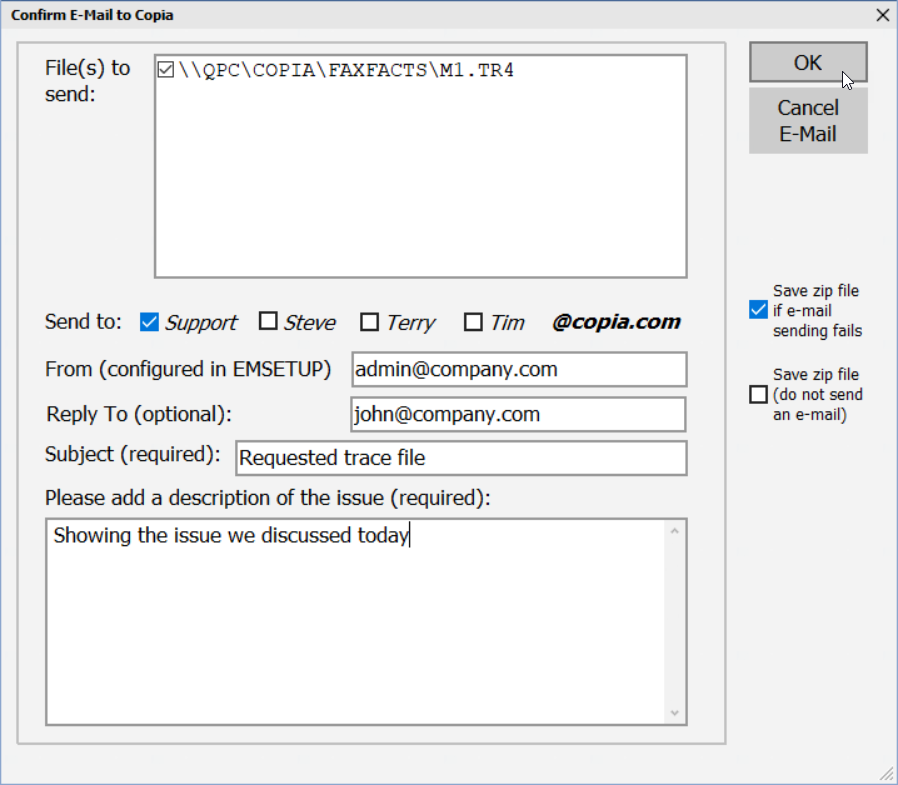
You must select one or more recipients, a subject and a description before the OK button is enabled. A pop-up from EMDIRECT will confirm that the message has been sent.
If the transmission fails, the zipped attachment file is saved for transmission by another means. This can be useful when sending a trace file relating to a problem with the initial configuration of this feature. There is also the option to save the ZIP file without sending an e-mail, for systems where outbound e-mail is not permitted. When a file has been saved, its pathname is placed on the Windows clipboard.
