Before you install the CopiaFacts Email to Fax SMTP Gateway, you will need to make a few preparations. In order for the gateway to function, it must be installed on a machine that has access to a CopiaFacts Server and it must be accessible to the users who will be sending email messages to it via a company intranet or remotely over the Internet. The gateway, like most SMTP servers, normally receives email over TCP port 25 (unless implicit TLS security is enabled).
 | Please take note of the following important Gateway features: |
•Unlike many SMTP servers the gateway is not intended to function as a mail server for outbound e-mail.
•It does not relay email.
•It does not forward email.
•it ignores all e-mail addresses in CC: and BCC: headers in the message (but see also below)
•It handles by default only a single recipient To: address in a message, as described below.
•It does not issue postmaster messages for email received that it does not handle.
•It does not replace your standard email mail server.
•Its only purpose is to process messages delivered to the domain(s) that you assign to it.
•In addition to the SMTP server the Gateway also contains an optional POP3 client to collect mail from specified mailboxes. See below.
You should avoid installing the gateway on any machine running Internet Information Server (Microsoft IIS). This is because IIS usually has its own SMTP service installed for delivering email from web applications. The gateway must be the only SMTP service using a standard SMTP port on the machine where it is installed.
In the documentation and examples below, the domain xyzcorp.com represents the normal corporate e-mail domain of your company.
Multiple Recipients in incoming Emails
| If you plan to allow a sender to use multiple To: addresses, it is very important to test incoming e-mails to determine how the sender's mail server handles this type of e-mail. |
| Recipient addresses appear in two ways in an incoming e-mail. First, in one or more RCPT TO commands, part of the SMTP dialog with the receiving server (also known as the 'envelope' recipients). Second, in the To: header of the message itself, normally shown to all the recipients of the message in their mail client. |
The CopiaFacts SMTP Gateway ignores any e-mail addresses in a CC header, unless there is no To: header, in which case a CC recipient is treated as the To: recipient. And any BCC addresses will normally have been extracted before receipt by the Gateway, but any remaining will also be ignored unless you specify in the sender template options that the 'envelope recipient' is to override the To: recipient in the message header.
Note that to conform strictly to RFC5321 an SMTP delivery server should always accept at least 100 recipients in a message, and should process the configured number even if the excess recipients are rejected (with code 422). Because of the specialist nature of the CopiaFacts SMTP Gateway, the default is to permit only a single recipient on each incoming e-mail, and to reject completely incoming e-mails which specify more recipients than the configured value. This policy should ensure that the Gateway either accepts all the valid recipients in an incoming message, or rejects all of them. You may increase the value of environment variable GW_RECIP_LIMIT (default 1) up to a maximum of 100.
When an e-mail sender specifies multiple recipient addresses (incorporating fax numbers) on an e-mail to the domain handled by the Gateway, the sending mail server may have handled these in three different ways when received by the Gateway:
•A single e-mail is delivered to the Gateway, with multiple RCPT TO commands in the SMTP dialog, and matching multiple e-mail addresses on the To: header in the e-mail body.
For this case, if the GW_RECIP_LIMIT value is exceeded, the Gateway will reject the incoming e-mail with code 553 and will not process any of the recipients. The code 552 (too many recipients) is not used because this may be processed as 452 by some senders and if so would cause only the excess items over the limit to be resent. See RFC5321 for background.
When the GW_RECIP_LIMIT value is greater than one and this limit is not exceeded, received document attachments and bodies will be saved with the sequence number of the incoming message as the base filename, not the generated FS number. This avoids the need for them to be converted in the Document Converter for each recipient.
•Multiple separate e-mails, each with a single RCPT TO command in the SMTP dialog, and multiple e-mail addresses on the To: header in each e-mail body.
For this case the GW_RECIP_LIMIT cannot be applied at the time the message is first received because there is always only a single RCPT TO command. It is essential to use the Sender TEMPLATE Option "only use a recipient matched in the message envelope" to prevent faxes being generated for all the addresses in the To: header from every one of the incoming e-mails. If all To: addresses were processed even when only one RCPT TO command has been sent for each e-mail, this would result in an e-mail with 10 recipients causing 100 faxes to be sent, 10 copies to each recipient.
GW_RECIP_LIMIT can still be used if you wish to prevent multiple fax numbers being used on the To: header even when the remote server generates a separate e-mail for each recipient, but each incoming e-mail must first be accepted so that the To: header can be checked. Then if the number of recipients named on the To: header exceeds the GW_RECIP_LIMIT value, each such e-mail will be rejected at the scan stage. The sender will not have received any SMTP error code.
If the GW_RECIP_LIMIT value is not exceeded, and even if the attachments are the same for each e-mail, all attachments need to be converted for faxing using each separate generated FS file.
If you specify a system notification e-mail to be sent for this message error, make sure that its 'interval' is set to a long enough period to avoid an e-mail being sent for very error. This error cannot be specified for an e-mail to be sent back to the sender, because of the risk of an error report being generated for each separate incoming e-mail.in a case where a huge number of recipients have been specified by the sender.
•Multiple separate e-mails, each with a single RCPT TO command in the SMTP dialog, and the same single e-mail address on the To: header in each e-mail body.
For this case the e-mails are all separate and not identifiable as a group; the GW_RECIP_LIMIT value cannot be applied. And even if the attachments are the same for each e-mail, they will all need to be converted using each separate generated FS file.
From release 8.3.1.324 of the SMTP Gateway, the Sender Template Option "only use a recipient matched in the message envelope" will be the default setting and the checkbox will be automatically checked. You may then uncheck it manually, but this is not recommended.
Also from release 8.3.1.324, you may override the GW_RECIP_LIMIT environment variable by defining a variable of the same name in a sender template file. This can permit specific senders to send documents by fax to multiple destinations. For the requirements to do this, please first read the topic for the GW_RECIP_LIMIT environment variable.
Sending EMAIL-to-FAX messages to the Gateway
The CopiaFacts SMTP Gateway can accept messages in one of two ways:
•faxnumber@fax.company.com - for example 12335678@fax.company.com, which requires either a subdomain or a separate domain from the main company domain.
•mailbox@domain - with the faxnumber as the Subject header, where 'domain' can either be a subdomain or the main company domain, which requires a means of redirecting the traffic to the gateway when received for the nominated mailbox.
Many CopiaFacts users choose the first option, but it does require setting up a subdomain with its own DNS settings and MX (mail exchange) DNS records to direct mail from external sources to the Gateway. This remains the method of choice for a fax bureau providing email-to fax services for a variety of clients, each using a separate domain name.
For corporate email-to-fax operations, setting up the subdomain remains an option, but the second option above is usually preferred. Until Microsoft and other mail providers deprecated the POP3 protocol in recent years, the CopiaFacts SMTP gateway also included an option to collect mail from a POP3 mailbox on the corporate mailserver, and some CopiaFacts users still manage to use this. However the best method of implementing a designated mailbox for email-to-fax for Microsoft 365 or Office 365 is to configure a Connector.
Sending e-mail to the Gateway with a Connector
A Connector will allow you to specify a mailbox on your Microsoft 365 or Office 365 mail server which is to connect and send all its incoming e-mail to the CopiaFacts Gateway. Users will then be able to send e-mail with a Subject consisting of the destination fax number and with a body and attachments to be faxed. You can select TLS security if this is enabled in the CopiaFacts SMTP Gateway.
| In July 2024, Microsoft announced that many types of the Connectors linked and documented here for inbound e-mail, and in EMSETUP for CopiaFacts outbound e-mail, could not be created after August 2024 and would stop working after October 2024. Subsequently, and after user comments, the October date has been changed to December 2025. The implications of this announcement are being investigated. |
| The Microsoft documentation for setting up a connector of this type can be found at: |
| Setting up the connector in your Microsoft 365 or Office 365 environment will normally be the responsibility of your IT support personnel. |
| Once the connector has been set up, |
•the domain name must be configured in the Gateway on the SMTP tab as a recipient domain. This will also set up the domain in the "work with templates" dialog on the validation tab, which you should then visit.
•if you already have valid sender templates for this domain, a warning will be displayed that you have the same domain as both senders and recipients. This is normal when configuring this option, and you should accept the warning after checking the checkbox indicating that it should not be repeated.
•A mailbox must be added for this domain matching the mailbox specified in the connector.
•In the template for this mailbox, the only content needed is a single command, which you should add:
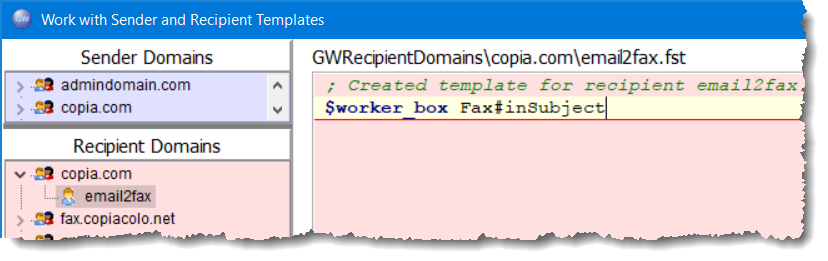
$worker_box Fax#inSubject
•You then need to set up Sender Templates to control accepted senders. You can set a default template allowing all senders from the domain, or name individuals separately, as described in the Sender Templates topic. CopiaFacts also supports the use of Active Directory to validate Inbound E-Mail senders, when only a single sender template is needed.
•Finally, if required and specified in your connector, you can set up TLS security for the Gateway and obtain and install a certificate. S/MIME signing/encryption, also discussed at that link, is not normally configured for email-to-fax applications.
| Apart from the discussion of Operation Monitoring, the remainder of this topic is not relevant when a Connector is used. |
Configuration of Email-to-Fax for external senders
If you will be offering a email-to-fax service for external users, you should set up a domain name specifically for this purpose, entirely separate from the domain name used by your company, for example fax.xyzcorp.com or xyzfax.com. This will be a public fully qualified domain name (FQDN) and will need the appropriate DNS entries (as a minimum, A and MX records) to route incoming email messages to the machine where the gateway is installed. Email-to-fax operations can then send emails to faxnumber@fax.xyzcorp.com.
This configuration has the following features and rules:
•A new domain name must be assigned to be a Recipient Domain. More than one such recipient domain may be configured if needed, all with the same network and security settings.
•The recipient domain name(s) must be entered on the Service tab in GWMANAGER. The names will be automatically copied to the Templates dialog accessed from the Validation tab, as recipient domains. Recipient templates are not required to receive simple email-to-fax, but are required in order to receive secure e-mail and e-mails which initiate other tasks, as in the examples below.
•External users (senders) can send e-mails from an e-mail client to the Gateway as:
| faxnumber@fax.xyzcorp.com | Normal email-to-fax tasks. No recipient template is needed |
| secure@fax.xyzcorp.com | Secure email-to-fax tasks, where the fax number has to be placed in the Subject of the e-mail message. A special recipient template is required (and can have any mailbox name, though 'secure' is recommended), and the template will have details of the gateway's private key for decryption. |
| email2fax@fax.xyzcorp.com | Normal email-to-fax tasks, where the fax number is optionally to be placed in the Subject of the e-mail message. Only one fax number can be entered in this way. A special recipient template is required (and can have any mailbox name; the one shown is an example only), and the template will have a special $worker_box code (Fax#inSubject) to enable this option: |
| remove@fax.xyzcorp.com | This is an example of a task other than email-to-fax, such as a script which actions the removal of a fax number or e-mail address from a broadcast list. A special recipient template is required (and can have any mailbox name; the one shown is an example only), and the template will have a special $worker_box script to enable this option. Examples are available for various common tasks. |
•Allowable senders are controlled and validated by means of sender domains and templates. The sender templates can be specified for individual sender names at each sender domain, for all senders at each sender domain, or for all senders. The sender template contains options for processing an email-to-fax transaction as well as validating that the sender is permitted to use the Gateway.
Configuration of Email-to-Fax for internal senders
If you will be offering a email-to-fax service only for users within your company, for example to provide email-to-fax facilities, you can use the techniques describe above to set up a new fax domain such as fax.xyzcorp.com or xyzfax.com, as described above. But it is also possible to integrate with your corporate mail server, on premises or in the cloud, and use your normal company domain name.
This configuration has the following features and rules:
•You can choose whether to set up a special fax domain and DNS records (see above) or to use your normal company domain.
•If you choose to use to use your normal company domain, CopiaFacts versions 8.3.1.279 and later provide an option for the Gateway to poll for mail in a nominated mailbox or mailboxes on your server. Before this option was available, non-standard configuration of an on-premises mail server was the only way for e-mails addressed to your company domain to be redirected to the Gateway.
•Internal users (senders) can send e-mails from an e-mail client to the Gateway as:
| faxnumber@fax.xyzcorp.com | Configured exactly as for external users, for normal email-to-fax tasks. No recipient templates is needed and your usual mail server will need no special configuration. But you will need to set up the DNS (MX) records and acquire the subdomain name as described for external users above. |
| email2fax@xyzcorp.com | Without the need to configure domain or make special changes to your mail server, you can use the POP3 client built-in to the Gateway to poll for and collect e-mail from a nominated mailbox or mailboxes on your mail server. This only requires a standard mailbox account to be added to your mail server, just like any other user mailbox: |
elizabeth@company.com
email2fax@company.com
eric@company.com
...
| The POP3 client can connect either to an in-house or a client mail server. The use of a standard mailbox in this way is described below. |
When the Gateway is configured to use a POP3 client to collect e-mails the use of faxnumber@xyzcorp.com syntax is not supported. For email-to-fax transactions sent to the specified mailbox at main company address, the fax number must be placed at the start of the Subject line. Only one fax number can be entered in this way on a single e-mail. The specified mailbox name must be specified in a recipient template; for the address email2fax@xyzcorp.com this would be a mailbox named email2fax under the recipient domain xyzcorp.com.
The Gateway collects mail from the POP3 mailbox in a similar way to other mailbox users, and deletes it from the mail box at the server after download and saving. You need to enable this feature at the foot of the Service tab in GWMANAGER, and then configure the credentials to do this on the Gateway POP3 Clients tab. See the POP3 Client topic for configuration details.
| It is important to note that, unlike the SMTP server, the POP3 Client in the CopiaFacts Gateway cannot control the origin of e-mails that arrive in this mailbox. Only the filters and controls in your corporate mail server can do that. If your internal users can receive e-mail from external sources, so can the email2fax mailbox; it is relatively easy for eric@spammer.com to guess or discover this mailbox send e-mail to it with a From address of eric@company.com. |
All the configuration steps for sender and recipient validation, templates and options are the same for e-mail gathered from a mailbox using POP3 protocol as for e-mail sent directly to the Gateway's SMTP server. The validation of sender IP addresses, if specified, is ignored for POP3-originated e-mail. When using this method to process e-mail, you can skip all the configuration steps which describe Domain Name configuration and MX records, unless you also want to receive and process e-mail with the SMTP server.
DNS (Domain Name Server) Issues
When required, you must first create an A (address) record for (in this example) fax.xyzcorp.com in your DNS entries that specifies the externally visible IP address of the machine where the gateway is installed. You must then create an MX (mail exchanger) record for fax.xyzcorp.com that points to the A record you just created. And you will probably want to create a PTR record so that reverse DNS look-up works for your IP address.
The methods for creating these DNS entries will vary according to the type of operating system software you have and the procedures established by your system administrator.
| Note that most documented examples for MX records show how to create an MX record for domain xyzcorp.com, pointing to its mail server mail.xyzcorp.com. This is not what you need for your CopiaFacts SMTP Gateway. Instead you typically need to set up an MX record for domain fax.xyzcorp.com pointing to the same domain fax.xyzcorp.com and directed to the machine on which the Gateway service is running. |
| If your CopiaFacts license includes multiple instances of the CopiaFacts SMTP Gateway, you may wish to set up multiple MX records for the for domain fax.xyzcorp.com, one pointing to each of the machines running the Gateway service. |
| The minimum requirement is that your network admin, or your ISP, must set up Address (A) and Mail Exchange (MX) record in your existing main domain (e.g. xyzcorp.com) DNS records, for a new domain, typically of the form fax.xyzcorp.com. Of course if you use a completely different base domain such as xyzfax.com a full DNS setup is needed. They will then need to direct incoming SMTP traffic for this domain to the machine running the Copia Gateway, and we also recommend that 'reverse DNS lookup' is enabled. All this should be a straightforward task for your network administrator or your ISP. You can test the setup by following the procedure described here. |
If you configure a Secure SMTP Gateway, you may also need to add a temporary DNS entry to provide evidence that you control your domain to the provider of your SSL Certificate. For an example, see the topics on configuring secure e-mail.
Network Issues
Your gateway machine must also have access to the CopiaFacts Application Data area. This is normally the FAXFACTS folder in the COPIA share and is either located on a machine where the CopiaFacts fax server software is installed or on a network file server. Unless you are installing the gateway on the same machine where the CopiaFacts fax server and server software are installed, you will need to establish connectivity to the CopiaFacts fax server by running the program COPIACONNECT located in the NETBIN folder in the COPIA share. However this will normally be handled automatically by the installer.
Account/Login Issues
The gateway runs as a service and is installed by default to use the local system account. If you will be accessing the CopiaFacts server over the network, you will need to change the service login account to an account that has access to the COPIA share. You may wish to create a new account just for use by the gateway. The login account may be changed through the computer management snap-in. Select the gateway service, right-click on it, and click on Properties in the pop-up menu. Click on the Log On tab, check the This Account option, and enter the new account and password information.
The Gateway supports two separate types of operation monitoring:
•You can run OMACHECK on another network machine and specify that the gateway writes an OMA file at regular intervals. This allows the other machine to monitor in the normal way that the gateway is still running. If the Gateway is unable to write its OMA file, it is assumed that the network will also not be able to save FS files: so it suppresses the scanning of received messages until the ability to write the OMA file is restored, but continues to receive and save incoming e-mail. You can be notified of this happening if EMSETUP on the gateway machine has been used to set up appropriate triggers and EMDIRECT has been installed there.
•You can run OMACHECK on the same machine as CFGATEWAY and use it to monitor that the service continues to listen on the SMTP ports. This requires that OMACHECK be run elevated (as administrator) on the same machine, or as a service. Normally this instance of OMACHECK would not be used to monitor other network OMA files. Monitoring is enabled for this purpose in GWMANAGER.
If you run a special instance of OMACHECK to monitor the SMTP ports, it can be left running (elevated) and will check that the machine has a listener process running on the monitored SMTP ports. It will only be activated when a monitored port has been listening since OMACHECK started, and then stops listening. When OMACHECK activates, it will attempt to stop the service, wait for 30 seconds, and then attempt to restart it. If you have another OMACHECK instance monitoring the Gateway OMA file, its delay time for this file should therefore be at least two minutes. You should disable this OMACHECK instance (by opening its window) if you need to stop the Gateway for maintenance.
To ensure that the port-monitoring instance of OMACHECK restarts and runs elevated when the server is rebooted, either use option in OMACHECK to run CFOMASERVICE as a service, or use the OMA task to start it when Windows starts ('at startup'), and ensure that it runs elevated.
| Note: this feature uses only BCC recipients. CC recipients and multiple To recipients are always ignored for the reasons highlighted at the top of this topic. |
With care, you can configure the Gateway to send multiple faxes from an e-mail message, using BCC recipients. . How this is done depends on from where the Gateway receives the message and on the mail client in use. You must test this feature in your own environment. Suppose a sender uses BCC in a message:
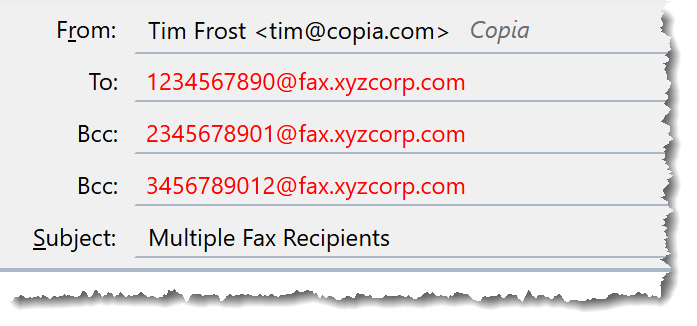
Most mail clients will generate three separate messages to send to the mail server. All three messages will contain the same To: header inside the message, because the second and third messages are both 'copies'. The Gateway uses the To: header to send the message, so the default result will be three copies of the fax sent to 1234567890. To ensure a sender can initiate a copy fax to each one of BCC recipients, a option in a sender template can be used to override the To: header in the message with the RCPT TO address, which is where the message is actually delivered to at the Gateway:

Note that in some environments where your own mail server routes messages to the Gateway directly, it is theoretically possible that it may be assumed the Gateway will handle BCC headers in the message and perform the distribution. In this case using the option above will fail. It is also not possible to use this technique when the fax number has to be placed in the Subject header.
As an alternative to BCC, Copia can provide sample scripts which accept a document and a list as email attachments and pass them as a fax or e-mail broadcast to FFBC or to Job Administration.
