Copia International provides updates and telephone support for the CopiaFacts product for three months after the initial purchase. There is no charge for the initial three months of support. You will be billed at the current rate for additional one year periods of support. Please contact your reseller for the current cost for support.
Support contacts
1. The CopiaFacts reseller from whom you obtained your CopiaFacts system, if applicable.
2. Copia International:
| Telephone: | (877) 720 0921 (from outside the USA, call +1 630 388 6900). |
3. Copia UK office:
| Telephone: | +44 1672 841393 |
4. Remote Support:
A remote support option is available using RealVNC On-Demand-Assist. This allows your machine to be viewed and controlled by Copia support personnel. This allows your machine to be viewed and controlled by Copia support personnel.
Earlier CopiaFacts releases used a customized VNC server implemented in the COPIATECH utility. We can still support this method of connection, but On-Demand-Assist is preferred.
Reporting Problems
The more practical detail you can supply to Copia support, the quicker we can resolve a problem! When reporting problems with the CopiaFacts software, please supply us with as much as posson;e of the information listed below:
 | The easiest way to do this is to send us an Engine Trace file as described below. The Engine trace file includes this system information at the start of each session and at the start of a new trace file (at midnight). If you ensure that Debug Configuration and Startup set on the COPIAFACTS Options/Debug page this will also include information relating to configuration settings from FAXFACTS.CFG. You can also run CFINFO and send us its output, which matches that written to the engine trace at the start of a new session. For details, see the linked topic CFINFO. |
| Hardware | Your hardware configuration: |
| | Machine type and Operating System. |
| | Boards and Ports in use, with driver versions |
| Software | The version of the main CopiaFacts software (given on the COPIAFACTS status screen) that you are running. If, exceptionally, you are running an older or newer version of one of the other utility programs or client programs, left-click the Copia copyright notice to display the version number and last modified date. |
| Problem | A complete description of the problems, including, if applicable, status screen displays. |
| Engine Trace | The trace file (nodename.TR?) created from the main COPIAFACTS engine (if applicable). If possible, send original trace files, and not other formats (e.g. .DOC) created from them. If sending by e-mail, ZIP the file first to avoid the file being word-wrapped and to reduce transmission time. The engine trace files will be found in the CopiaFacts Application Data folder (typically \\machine\COPIA\FAXFACTS), unless overridden by an FFTRC system environment variable. The last digit of the file extension indicates the day of week, with .TR0 starting the week on Sunday, .TR1 Monday, etc. |
| Other Apps Trace | The trace file (nodename.FT?) created by FFTRACE which captures debug data from other CopiaFacts programs running on the same machine, as well as from some of the DLLs called from COPIAFACTS.. This is especially important for Document Conversion problems, when you should enable FFEXTERN, CVSINGLE and CF9IMAGE in FFTRACE under File/Applications in FFTRACE. The trace data collected by FFTRACE will be found in the CopiaFacts Application Data folder (\\machine\COPIA\FAXFACTS), unless overridden by an FFTRC system environment variable. The last digit of the file extension indicates the day of week, with .FT0 starting the week on Sunday, .FT1 Monday, etc. |
| | FFTRACE must be left running to capture output from CopiaFacts applications running on the desktop; it should be closed after selecting the applications to be traced if the applications are running in service mode, from which FFTRACE on the desktop cannot capture output, altough it does configure the trace options. Services write to their trace file directly. |
| Gateway Trace | The Gateway trace files are named with extensions GW0, GW1 etc. as described above. They will be found in the local folder on the Gateway machine specified in the GWMANAGER Gateway manager. In addition to the trace file, please always include the .BAK (or .XXX or .MSG) and .MIF files associated with any problem incoming message. If an FS file has been written from the Gateway, the reference number of these files will be in its SMTP_MSGBASE variable value. |
| Service Traces | Trace files from other CopiaFacts services and drivers are enabled by running FFTRACE and selecting the name under File/Applications, but FFTRACE does not need to be left running to capture these traces. Instead the trace files appear as program.FTx in the same folder as other trace files. |
| Configuration | A copy of your configuration file (normally FAXFACTS.CFG) and any relevant user profile files. |
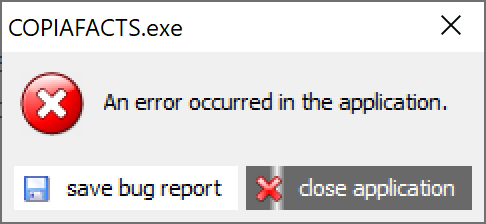
| Exceptions | Some programs include the ability to report in detail on unhandled exceptions in the graphical interface, which can occasionally occur. The report, which contains no customer data, will be e-mailed automatically to Copia, unless your system blocks this, in which case it will be saved in in a file BUGREPORT_timestamp.TXT. The file will be normally be written in the defined $local_temp folder. If the exception occurs while you are watching the program, you will see a dialog displayed before the program terminates; the white bar moves across the close button and when it reaches the end, the application will close. |
| Currently, only the COPIAFACTS program includes this feature, and catches errors in the graphical interface only; errors in the main COPIAFACTS engine are reported in the engine trace file. Other CopiaFacts applications may be supplied with this feature enabled when specific investigations are required. |
| IIF | Copies of any .IIF files you may be having difficulty with. |
| FS | Copies of any .FS files you may be having difficulty with. |
| Log File | The daily (yyyymmdd.DBF) log file in the FAXFACTS\LOG folder will provide us with context for the problem. It shows the pattern of successes and failures and in some cases leads directly to the cause. |
If problems in the CopiaFacts engine are repeatable, you should run COPIAFACTS with error tracing enabled (see COPIAFACTS trace options). Error tracing creates a trace file of call progress events. This log may be quite large since each state of the call is logged. For this reason you should normally speak to Copia or your technical support contact so that the best options can be selected to diagnose the problem. You can also turn on error tracing dynamically using the F5 and F6 to F10 keys (see COPIAFACTS Keyboard Functions).
| Before sending a trace file to Copia, please open it in TRCVIEW and take a look at it. If it is sparse or empty, you may have incorrectly configured the trace settings described above. The red lines in an engine trace may indicate obvious errors which you can correct locally. And towards the end there may be a clear indication of an error which has caused the program to terminate. |
See also Sending Files to Copia Support