Outbound Fax/E-Mail Status Viewer
STATUS
STATUS is a program which is used to view the contents of the TOSEND, SENT and FAIL directories. It can also be used to delete queue entries or resubmit failed requests.
 | If your COPIAFACTS server is used mainly to send faxes originated by users sending e-mails to the Copia SMTP Gateway, you should use the EMSTATUS utility to view and manage them, not this program. |
| STATUS only displays transactions initiated by CopiaFacts using FS files, such as outbound faxes, e-mails, voice calls, and script transactions. It does not display incoming faxes, e-mails or voice calls. |
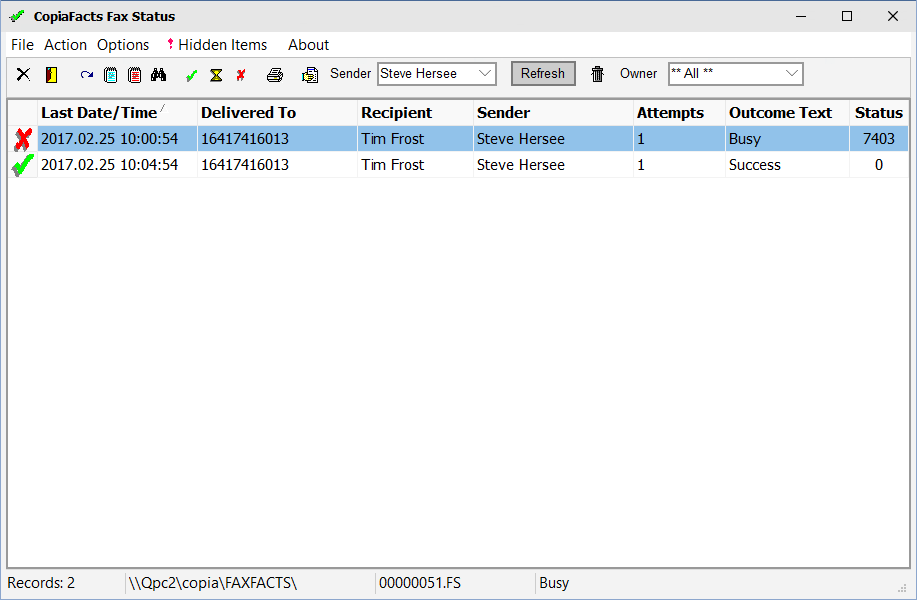
Normally STATUS is run from the CopiaFacts Client (FFCLIENT) which will call it with command-line parameters and options set by your system administrator. Status can also be run by the administrator to view the FS files of all users. In administrator mode, it is not designed for (and should not be run on) a system with a large broadcasting operation which may generate tens of thousands of FS files.
Right-Click Options
The following right-click options are available in the main grid:
| View/Change | Opens a dialog showing the principal properties of the FS file and its included files, which can be viewed. |
| Editor | Opens a text editor for the FS file, in which you can double-click a command to view its help topic, and with the usual right-click options for opening filenames that are in the command parameters. |
| History | Displays a table of the content of $attempt_record commands in the FS file. |
| Delete | Deletes the FS file, but not any files named in its parameters. |
| Send Files to Copia | Opens an EMDIRECT dialog (if configured in EMSETUP) after collecting relevant trace and attachment files to be sent to Copia (see below). |
Filtering the Files to be Displayed
STATUS has several filtering options, which can greatly speed up the scan for FS files, because they reduce the number of files to be opened and read. All the filters are applied at the time the folders are scanned. The following filters are available on the 'hidden items' menu:
•You can hide 'lower priority items', defined as those in numbered TOSEND folders; only files in TOSEND will be included.
•You can use the hidden items menu (or the taskbar buttons) to hide all SENT or FAIL or TOSEND (pending) files.
•Files can be excluded by date: there are three options:
•Exclude files earlier than the preceding working day. Working days can be selected on the options menu
•Exclude files earlier than a week ago
•Exclude files outside a selected range of dates. The range can be as small as a single day.
•Files can be excluded if they do not match a specified file-name mask, which may include * and ? characters. For example:
•0012345? displays only FS file-names from 00123450.FS to 00123459.FS
•00123456 finds and displays the single file 00123456.FS
•*CODE2* displays only files containing "code2" anywhere in the filename. This feature can be used for sites where the filenames are generated by a customer-supplied application.
•??432100! displays a range of 100 files for a Job Administration user who has set the ReverseFS job option to 'randomize' job item pickup.
The Hidden Items menu is displayed with a warning flag (!) if items are hidden. The 'hidden files' options are persisted from one run of STATUS to the next; for the range option if the end-date of the range (or both dates) is the current date when STATUS is closed, it will be set to the current date when next opened.
A lengthy FS file scan can always be stopped by pressing Escape. When the scan has been stopped in this way, the right-hand end of the status bar will show 'scan stopped' to indicate that the display may be incomplete. Alternatively, the Manual Refresh Only item on the Options menu allows you to suppress the automatic refresh after any of the folder or date filters are changed and also on program startup. This allows multiple filters to be set without causing a new scan. Instead the Refresh button flashes to remind you to refresh when the required filters have been set.
| If STATUS takes a very long time to load FS files, this may indicate that you should configure the CopiaFacts Housekeeping Service CFHK to archive or delete older files from your SENT and FAIL folders. Selecting 'recent files only' can avoid some, but not all, of the time taken to search through historical data, but using CFHK also makes many other tasks in the system faster. |
Clicking the column header will sort the displayed items on a single column, and clicking again will first reverse, then undo the sort. A setting on the 'configure columns' dialog allows the sort sequence to be remembered for subsequent executions of the STATUS program.
An alternate multiple-column sorting mode can also be selected on the 'configure columns' dialog. In this case a click on the column header will select the main sort column (and a second click will reverse the sequence). But shift-clicking one or more column headers will add subsidiary sort keys. Again a second click on the same column will reverse the sequence.
Sending files to Copia Support
A right-click menu item in the main status list will cause the FS file to be sent to Copia Support in case of a query or problem. Trace files, if available, are also attached, along with the SMTP Gateway MIF and BAK files (if saved) if the item originates as e-mail to fax. Notifications first have to be configured in EMSETUP.
Icons used in the first column
The icons in the left column of STATUS have the following meanings:

| Green Tick | SENT |
| Red X | FAIL |
| Cyan Timer | Waiting for Document Conversion (FFEXTERN) |
| Traffic Light | Actively being processed |
| Yellow Timer | Queued, or waiting for post-processing |
The columns available extract the data shown below from the FS file:
| Last Date/Time | After an attempt has been made, shows the date and time of the last attempt record. Before an attempt has been made, shows the 'request' (originating) date and time. |
| Delivered To | The destination fax phone number, voice phone number, or e-mail address. For a maintenance operation, shows $worker_box. |
| Status | Shows the numeric outcome status value from $fax_status2. See also Outcome Text below. |
| Recipient | The value from $fax_receiver (expanded if it starts with @), or $email_address (expanded if it starts with `), or the ROUTETO variable, or the script name from a $worker_box command. The FS file for a consolidated transmission is shown as CONSOLIDATED. |
| Sender | The value from $fax_sender (expanded if it starts with @), or $email_from or $email_sender (expanded if they start with `). |
| Delivered by | Shows as 'Fax', 'Voice' or 'Email' |
| Sender Email | The e-mail address from $email_from or $email_sender. |
| Email Subject | The e-mail subject from $email_subject |
| Pages | The page count from $fax_pages |
| Attempts | The number of $attempt_record commands in the FS file |
| Last Status | Shows the numeric outcome status value from the last $attempt_record command. See also Outcome Text below |
| Last Attempt | The date and time of the last attempt from the last $attempt_record |
| Originated | The date and time of origination of the FS file, if recorded in $fax_request_date / $fax_request_time. |
| Next attempt | The date and time of the later of the scheduled send time and the next calculated retry attempt time, from $fax_send_date / $fax_send_time and $fax_next_date / $fax_next_time. |
| Remote CSID | The fax CSID (destination answerback) from the last attempt, or the domain name of the remote mail server for email transmissions |
| SMTP MSG number | For outbound transmissions originating from incoming e-mails, the message number allocated in the CopiaFacts SMTP Gateway in the SMTP_MSGBASE variable. |
| Variable Group | The number of the set of 'grouped variables' used on the last attempt. The variable group may have been used to adjust the maximum transmission rate on each attempt. |
| Email Mailserver | The full domain name of the remote mailserver used on the last transmission, if successfully connected, from the EMAIL_MXREC variable. |
| Outcome Text | The full description of the outcome status, from the LAST_OUTCOME variable |
| Outcome Class | The full description of the outcome class, from the LAST_OUTCLASS variable. The outcome class is used to determine the retry strategy after each failed attempt. |
| (variable name) | The name of any FS file variable may be added in the list of extracted columns. For outbound transmissions originating from incoming e-mails, see also the list of SMTP variables. |
Notes:
•When a command or variable shown in the list above is not available in the FS file, the field in the column will be blank.
•Date/Time fields are formatted as yyyy.mm.dd hh:mm:dd.
•Email addresses normally show only the effective address (the part inside < > if present, or excluding the part in double-quotes).
•Destination and recipient fields which contain the special values ? or ?2, ?3 etc, are expanded if the corresponding BCF1, BCF2 etc variables are defined in the FS file.
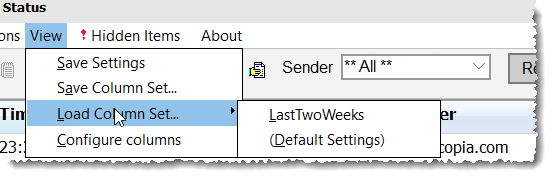
The View menu has items to save and re-load sets of column, filter and sort parameters. This allows simple and quick switching between multiple views of the status data for an administrator. The following features should be considered:
•The Save Settings on Exit menu item is always set to checked when STATUS starts, but is automatically unchecked when a named column set has been saved or loaded, and set to checked again when you reload the default settings. Your default settings will therefore be unchanged when you exit the program (unless you manually change the Save Settings checkbox).
•We recommend that you always define your own names for sets of settings, and avoid using the default names Columnset0, Columnset1, etc. which can quickly become confusing.
•If you change the name of an existing column set when saving a set, it will rename and overwrite the original set, not create a new one.
•The parameters saved in a 'column set' include the columns and column headings, the filters which reduce the number of items displayed, and the column sort settings.
•The display is always refreshed after loading a column set, overriding the 'manual only' option below.
•These option items are only available when STATUS is run in administrator mode, with the five administrator command-line parameters. You can add the column set name as a sixth parameter on a special Windows shortcut icon, to start STATUS with a specific column set.
There are three program options under Options in the main menu:
•Selecting 'non-working days' affects the Hide recent files options in the View menu.
•Selecting 'expand all variables' will expand variables held in each column using values defined in each FS file. This may slow down the scan of FS files somewhat. It requires a click of the Refresh button to re-scan the files.
•Manual Refresh Only: this option suppresses loading or reloading FS files on any change to the filters and on opening the program. Instead the Refresh Button flashes to remind you to refresh the display. Changing the column set overrides this setting and will always cause a re-load.
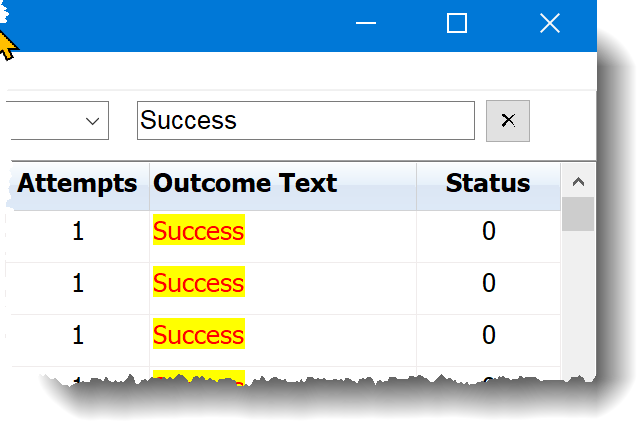
•Enabling auto-refresh (see below). This option is only enabled when the Hidden Items menu is set to hide all items 'Before Yesterday'.
STATUS and EMSTATUS include an experimental automatic refresh option, with some limitations which are intended to avoid overloading the system with large-scale scanning through the TOSEND, SENT and FAIL folders. The operation and its limitations are as follows:
•Automatic refresh only happens when transactions 'Before Yesterday' are hidden from view, using the 'Hidden Items' menu. This prevents large numbers of finished files being continuously found and opened for status display. The settings for automatic refresh are retained if you temporarily disable the hiding of earlier items. You can also decrease scanning overhead by excluding other groups of transactions.
•This feature can be used even if the Manual Refresh Only option is set (see above).
•Automatic refresh is suspended if you click in the grid to work on an item, or if you click on the Refresh button during the interval. This prevents an item you are working on being moved while you are looking at it. To re-enable automatic refresh, click the Refresh button.
•The automatic refresh interval always begins, if enabled, when a refresh operation finishes. The initial refresh can either be manually initiated by clicking the Refresh button, or as a consequence of changing the Hidden Item filters. The first interval then starts at the completion of this refresh operation. Each interval is counted down in seconds as indicated at the right-hand end of the status line: if you do not see this counter, then automatic refresh has been either suspended or not started.
•The refresh interval can be set in steps of one minute, from 2 to 60 minutes.
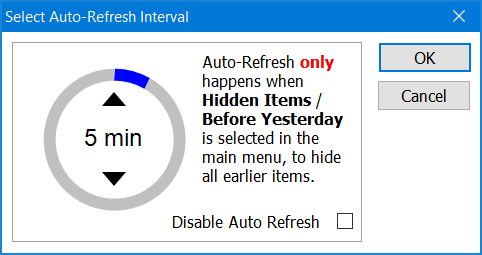
Widen the window to see an entry field in the headings with a text hint 'Highlight in grid'. Text you enter here will be highlighted throughout the grid. Click the X icon to clear the field.
Printing the list
The print button opens a dialog to select options, followed by a print preview window, and then a printer selection. The default options select the whole table for printing, but the dialog allows the print settings to be adjusted and saved for re-use.
For more information, see the FFCLIENT and Quick Reference topics.
